

DataMagic Technical Column Vol.24
<Resolving customer requests!: Common components that can process data even if it contains invalid data>
Introduction
Thank you for visiting DataMagic 's technical column.
Recently, we received a request from a customer using DataMagic who said, "We want to continue data processing even if there is invalid data."
Customer Requests
If the "item type" is "P" (internal decimal), I want to convert the data by replacing it with null data.
The customer who made the request said that the input data had been created in an external system that the customer could not modify, and that there was a possibility that incorrect data had been mixed in.
DataMagic has a function to skip error data, but this function skips over problematic records, so unfortunately it cannot meet your needs.
However, it is possible to solve these requests with common components!
In Vol. 22 and Vol. 23, we introduced common components, but in this TIPS, we will introduce common components that will realize this request.
This feature will also be included in DataMagic Ver.3.
To use this tip, you must install DataMagic. For information on where to obtain DataMagic and how to install it, please refer to the separate article "Installing DataMagic."
The SAISON_PACK2NUMSTR common component introduced in this TIPS can be added to DataMagic Ver.3. 3.0.0 or later without updating DataMagic you are currently using.
Data conversion using common components
Below is an example of a common component implementation that solves customer requests.
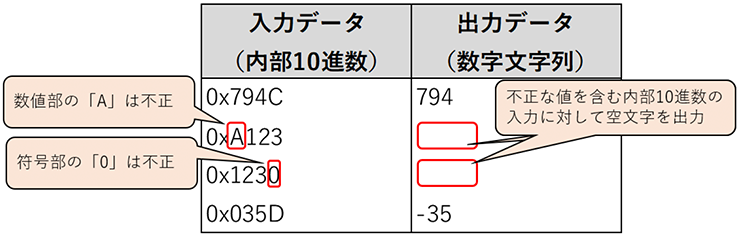
Image of input/output data
The sign part of the internal decimal number uses the following settings.

The input data and expected output data are shown below.
Operation check using sample data
Let's try it out using some sample data.
»Download the source data and script files
(Note: The sample file is in zip format. Please unzip it before use.)
Step 1 - Prepare the data to be converted and the script file
First, prepare the input data (the "in" file) and the data conversion script file (the "sample24.igen" file). Download sample24.zip from the link below and save it in the following folder on the PC where DataMagic is installed.
C:\work\sample24\ (Saves “in” and “sample24.igen”)
In this TIPS, we will use internal decimal input data.
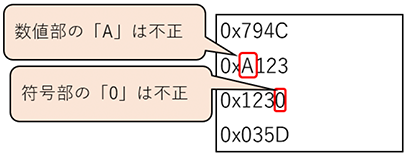
The input data contains some invalid values.
Input data (internal decimal number)
The sign part of the internal decimal number uses the following settings.

Step 2 – Perform data processing
Import the script file obtained in step 1 (the “sample24.igen” file) and execute the added data processing process SAMPLE24.
For the procedures for importing and executing common components, please refer to the separate article "DataMagic Technical Column Vol. 22 Appendix: Procedures for Importing and Executing Common Components."
Step 3 – Check the results
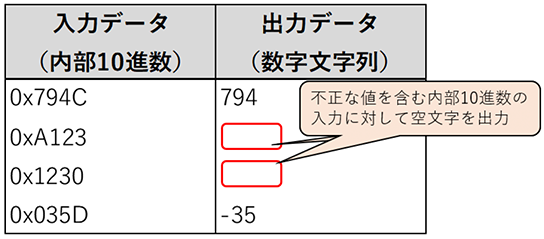
When execution is complete, a file called "out.txt" will be created in the C:\work\sample24\ directory specified in the output settings. Please check the contents using a text editor.
Input/Output Data
How to use SAISON_PACK2NUMSTR
SAISON_PACK2NUMSTR introduced in this tip can be used for data processing if you are using DataMagic Ver.3 or later.
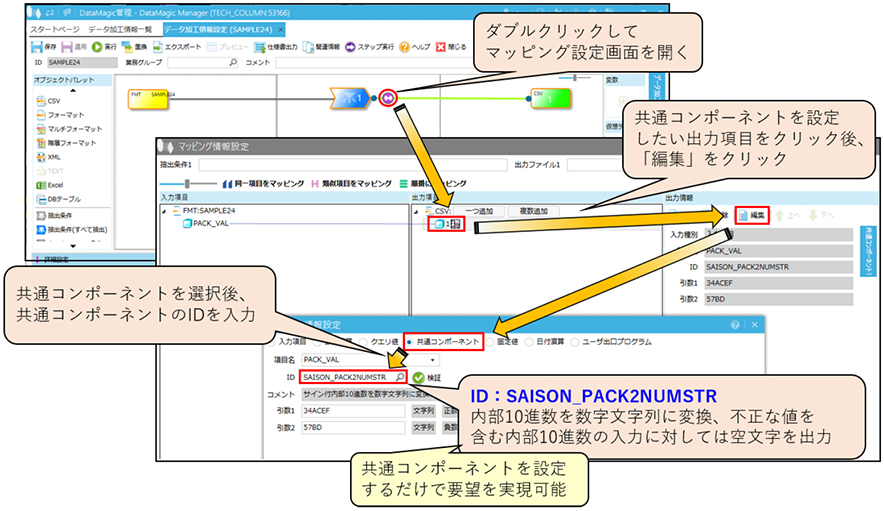
To check how to use SAISON_PACK2NUMSTR, after importing the common components, double-click SAISON_PACK2NUMSTR in the common component information list.
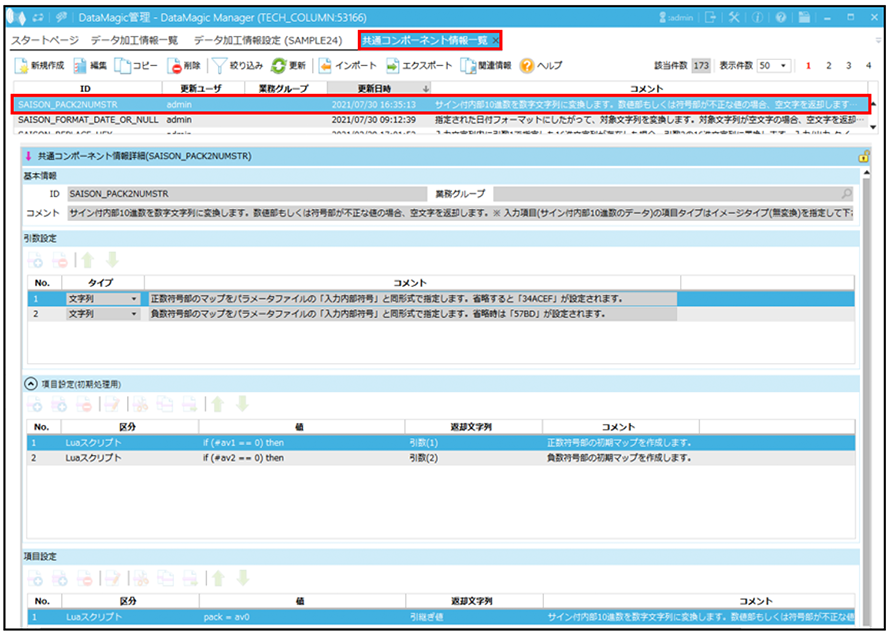
When using common components, please check the explanation in the red box below.
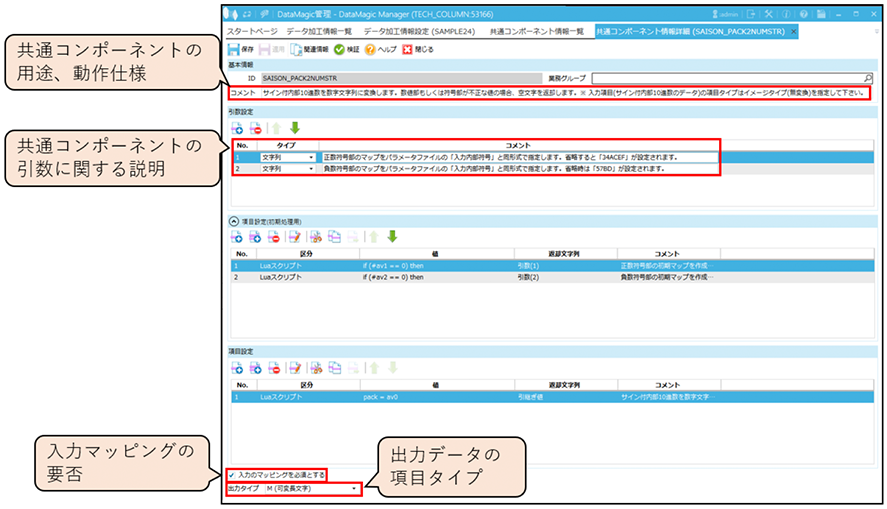
Common components can be set in [Mapping Information Settings] under [Data Processing Information Settings].
For details on how to set this up, please refer to the explanation in "Data conversion using common components."
Precautions when using
As stated in the comments for the SAISON_PACK2NUMSTR common component, please note that the item type for input items (signed internal decimal data) must be specified as image type (no conversion).
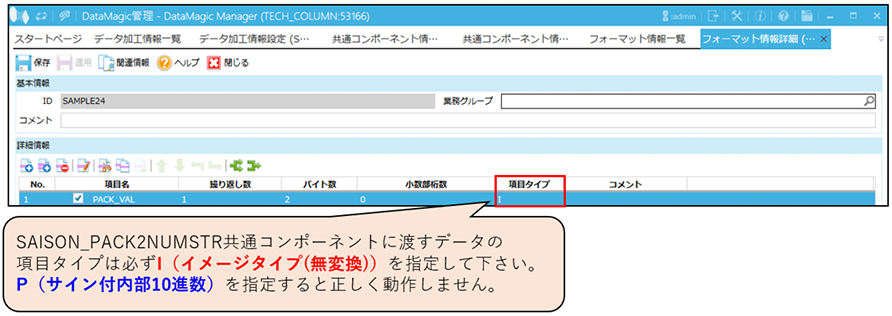
lastly
The export file for the SAISON_PACK2NUMSTR common components introduced in this article can be downloaded from the link below. If you want to add only the common components without using sample24.zip from "Checking operation using sample data", please use the link below.
»Download the export file for the common component "SAISON_PACK2NUMSTR"
(Note: The export file will be in zip format. Please unzip it before use.)
If you do not have DataMagic
If you are interested in this product, please download DataMagic evaluation version and try it out.
- The trial version is free to use for 60 days.
- After you sign up for the trial version, you will receive 90 days of free technical support.
DataMagic Column List
- DataMagic Manager Installation
- "DataMagic" is recommended for its "fast, cheap, and easy" features.
- Vol.1 Character code conversion: EBCDIC⇔Shift_JIS
- Vol.2 Character Code Conversion: External Character Codes
- Vol.3 Character Code Conversion: Unicode (UTF-8)
- Vol.4 Data Conversion: Pack⇔Zone Edition
- Vol.5 (Fixed length ⇒ CSV data conversion)
- Vol.6 (Special Edition) HUB+ DataMagic Collaboration Case Study
- Vol.7 <Distribution BMS ⇒ CSV Conversion>
- Vol.8 <Matching Processing>
- Vol.9 (Full-width⇔Half-width Conversion)
- Vol.10 (DB table data extraction)
- Vol.11 Data Correction
- Vol.12 〈String Replacement〉
- Vol.13 (Special Edition) DataMagic Implementation Case Studies
- Vol.14 (Data sorting and file division)
- Vol.15 Data Collection
- Vol.16 File Merging
- Vol.17 HULFT Definition Bulk Registration
- Vol.18 (Special Edition) HULFT-WebFiletransfer + DataMagic Integration Case Study
- Vol.19 (Introduction Case Studies) Our company's use cases
- Vol.20 Data Masking
- Vol.21 (DB Migration Edition)
- Vol.22 <Common Components: EBCDIC Code Replacement>
- Vol.22 Appendix <Common Component Import and Execution Procedures>
- Vol.23 <Common Components: Date Conversion Function Extension>
- Vol.24 〈Resolving customer requests!: Common components that can process data even if there is invalid data〉