
TeamViewer file transfer FAQ

TeamViewer file transfer FAQ
In recent years, work styles that are not bound by location or time, such as working from home or mobile work, have been gaining attention. As a result, there has been a growing need for remote control software that allows users to remotely control computers from a distance. In this article, we will introduce file transfer function of TeamViewer, which boasts the number one market share in remote control software.
1. What is TeamViewer?
1-1 TeamViewer's track record
TeamViewer is the number one remote control software in the market.
Of the 500 companies listed in the Fortune 500, a global corporate ranking compiled and published annually by Fortune magazine in the United States, 90% use TeamViewer.
In addition to the United States, users from 200 countries use the service in over 30 languages.
1-2 Why choose TeamViewer?
Why is TeamViewer chosen by so many people around the world?
There are three main reasons for this:
- Because it's easy to set up
After installation, you can start using it immediately. - Because it's easy to use
There's no need to go through complicated procedures like disclosing your IP address. As long as you know the other person's account information, you can share their device. - Free for personal non-commercial use
It's also very reasonably priced for commercial use, and is a one-time purchase that includes support fees.
2. TeamViewer file transfer operation example
One of the most commonly used features of TeamViewer is "file transfer."
There are several ways to do this, but here we will introduce the basic steps for remotely controlling a computer from an iPhone and transferring files.
(1) On your PC: Launch TeamViewer.
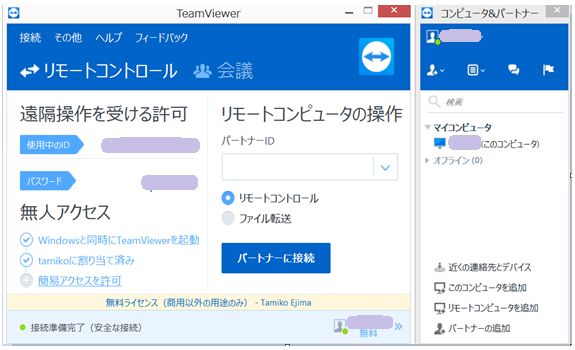
(2) On the iPhone: Launch the TeamViewer app.
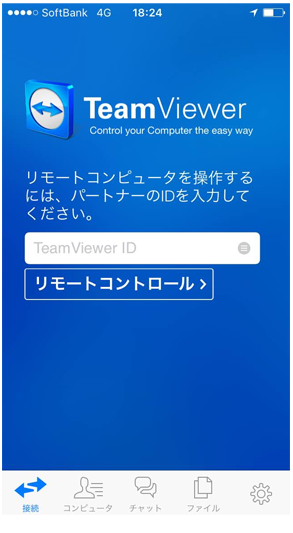
Enter the ID displayed on the computer and tap "Remote Control." You will be prompted to enter a password, so enter the password displayed on the computer. That's all it takes to connect.
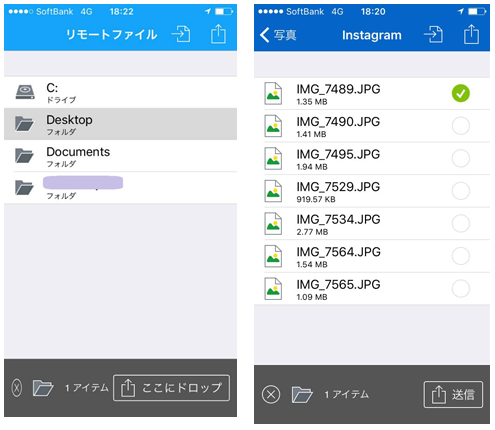
(3) On the iPhone: Tap the "Files" icon at the bottom of the screen to send and receive files from your computer or your iPhone.
3. TeamViewer file transfer FAQ
Get answers to frequently asked questions about TeamViewer file transfer.
- What is the file transfer speed of TeamViewer?
> the latest version of TeamViewer 12, which was officially released on November 30, 2016 (Japan time), improves file transfer speed, achieving up to 200MB/s, which is 20 times faster than before. - What is file transfer capacity of TeamViewer?
On its official website, TeamViewer states, "You can share files of any size." - What are TeamViewer's file transfer file formats?
TeamViewer clearly states on its official website that "any file can be transferred." - What are TeamViewer's file transfer devices?
"Multi-platform" is one of TeamViewer's features.
It provides cross-platform PC-to-PC, mobile-to-PC, PC-to-mobile, and even mobile-to-mobile connectivity for Windows, macOS, Linux, Chrome OS, iOS, Android, Windows Universal Platform, and BlackBerry. - How secure is TeamViewer file transfer?
Encryption and code signing ensure a safe and secure environment.
Its security quality has been awarded a five-star certification by the "Association of German IT Appraisers and Assessors" ("Bundesverband der IT-Sachverständigen und Gutachter eV": BISG eV). - TeamViewer file transfer What if you want to send it to everyone?
If you have files you want to share with everyone during an online meeting, you can upload them to OneDrive for Business cloud storage, making them accessible to everyone in the online meeting.
To use this feature, you need a Business or higher license.
4. 3 Ways to Strengthen TeamViewer Security
TeamViewer is a very easy-to-use remote control software, but if your account information is leaked, there is a risk that important data may be deleted, stolen, or tampered with.
To minimize the risk, we recommend strengthening your security by taking the following measures:
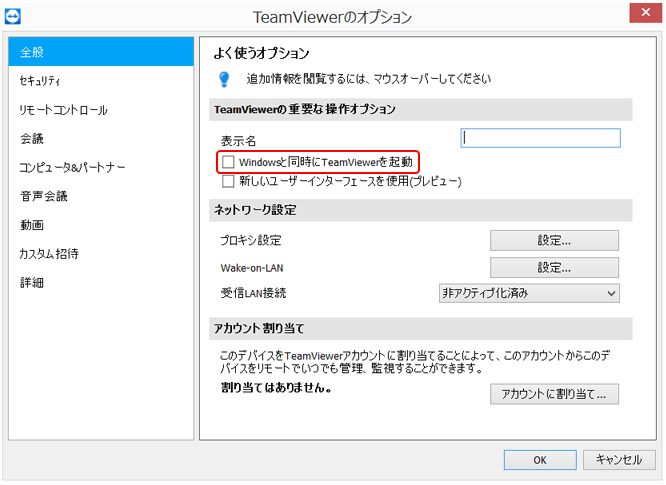
(1) Disable automatic startup.
If [Start TeamViewer with Windows] is turned on, there is a risk that if you leave your company computer on when you go home, someone who knows your account information may be able to remotely control your computer without your permission. Make sure to turn off the automatic startup option.
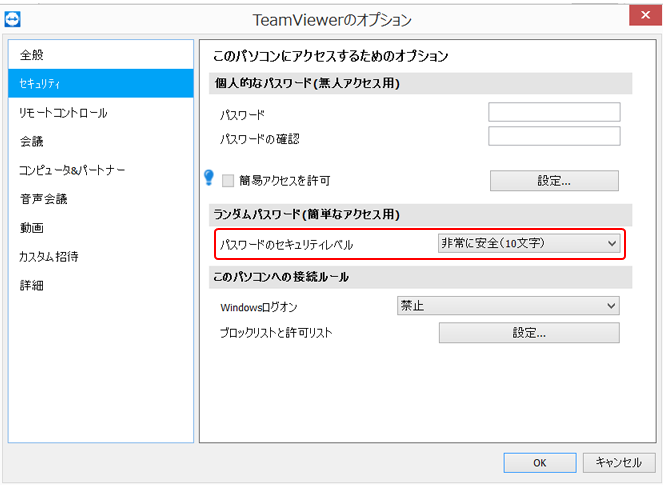
(2) Make your password longer.
The temporary password that is randomly generated each time you start TeamViewer is initially set to 4 digits. You can increase security by changing this to 8 or 10 digits.
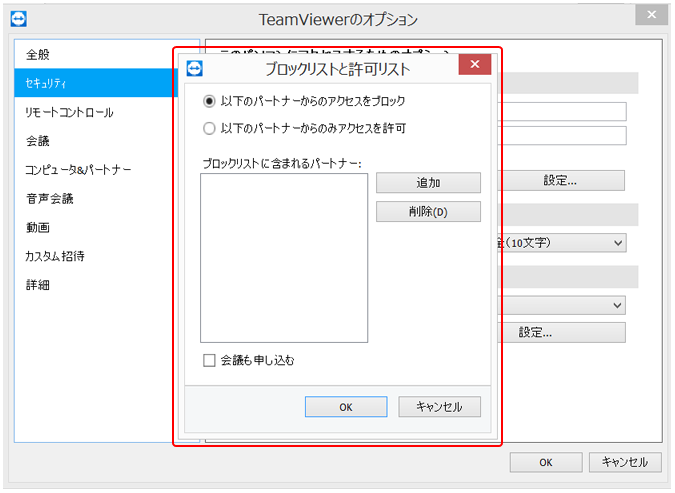
(2) Set up a whitelist or blacklist to limit the parties who can connect remotely.
By setting up a whitelist (allowed list) or blacklist (denied list), you can prevent access from unspecified accounts.
summary
With TeamViewer, you can log in to your home, office, or client's computer via your smartphone while on the go and access the information you need.
As one of the tools to support "work style reform," the number of users is likely to continue to increase.
Be aware of both the convenience and the risks that come with it, and use it wisely.
- This article is based on the official TeamViewer website and official video, but we cannot guarantee the content. If you have any questions about TeamViewer's features, please contact TeamViewer directly.
File Sharing: A Beginner's Guide Column List
- File Sharing: An Introduction
- The dangers of "shadow IT" that you should be aware of before using data integration services
- File sharing services: 5 things you need to know when selecting one
- Pitfalls of free file transfer services! Information leakage prevention
- Understand the roles and types of protocols used for file transfer
- Is a file sharing service the best option for sending and receiving large files?
- The ever-increasing volume of data is making file transfer a struggle.
- Three benefits of large-capacity file transfer software that prioritizes ease of use
- Four things to be aware of when data integration
- How to data integration?
- file transfer via HTTP? ISDN will end in 2020
- MFT enables file transfer that FTP cannot.
- No more need for USB flash drives? 3 ways to transfer data over LAN
- Improve business efficiency with data integration platform! Three benefits
- Convenient! How to use Bluetooth for file transfer
- How to use file transfer services that you may have thought you knew about
- Key points to consider when choosing data integration middleware
- Recommended file transfer services to improve business efficiency
- A reliable ally for data integration! Efficient conversion and effective utilization through ETL
- How to data integration with Salesforce
- data integration middleware makes your work more efficient
- This is recommended! data integration service that is conscious of security
- Efficient data integration and siloed system integration through EAI
- When integrating systems with overseas bases, improve work efficiency with English-language tools!
- Three benefits of centrally managing system integration
- A DI platform that data integration scattered throughout the company