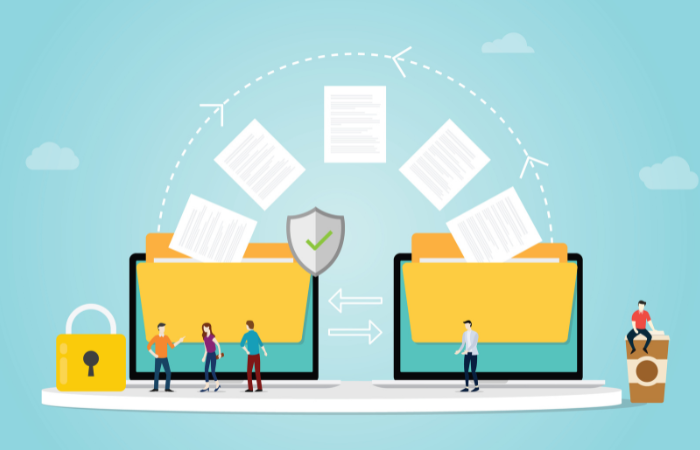

No more need for USB flash drives? 3 ways to transfer data over LAN

Three methods for transferring data using a LAN and their features
When you want to transfer data from one PC to another, simple and common methods are to attach it to an email and send it, or to use a USB memory stick.
However, is this the best method if each file is very large or if you are transferring dozens of files at once?
When attaching files to emails, the file size can be too large and sending or receiving can be difficult, and repeatedly copying files to a USB memory stick can be time-consuming and tedious.
This time, we will introduce three methods and their features for transferring multiple large amounts of data from one PC to another using a LAN (Local Area Network).
1. Method 1 for transferring data between PCs using LAN: Direct connection
The first method is to transfer data by directly connecting the source and destination PCs with a LAN cable (crossover cable). Because there is no relay device between the PCs, this method allows for the fastest transfer of large amounts of data over a LAN. However, because two PCs are directly connected, data cannot be transferred to any PC other than the connected PC. Also, because one-to-one network connection settings, such as IP address settings, are required, data cannot be transferred while connected to another network (such as the Internet) unless there are multiple LAN ports or an environment where wireless communication such as Wi-Fi can be used simultaneously.
Therefore, this method is not suitable for everyday data transfers, but rather for transferring large amounts of data only once, such as when migrating data when replacing a PC.
[Features]
- It can transfer large amounts of data at the highest speed
- Data can only be transferred to one specific PC.
2. Method 2 for transferring data between PCs using a LAN: Local connection
The second method is to transfer data using a LAN environment. A LAN environment here refers to a network environment, such as an internal company network, where PCs and communication devices within a limited area are connected by LAN cables, allowing data to be transmitted between them. The sharing of folders and drives used by many companies is an example of data transfer using a LAN environment.
Although the speed of data transfer depends on the performance of the communication devices used, the advantage is that data can be transferred simultaneously to multiple PCs within a LAN environment. Furthermore, since no special network settings are required, as is the case with direct PC-to-PC connections, it can be used as a means of everyday data transfer. However, since the destination PC must be connected to the LAN environment, data cannot be transferred to PCs outside the LAN environment, such as PCs outside the company.
Therefore, this method is suitable for transferring files and data on a daily basis only between multiple PCs connected within a limited range, such as an internal company network.
[Features]
- You can easily transfer data to multiple PCs simultaneously within a limited range.
- Data cannot be transferred to computers outside the LAN environment, such as computers outside the company.
3. Method 3 for transferring data between PCs using LAN: Internet connection
The last method is to transfer data by connecting to a cloud storage service (such as Google Drive or Dropbox) from a LAN environment connected to the Internet.
Data transfer speeds depend on the performance of the communication devices in the LAN environment as well as the devices on the cloud storage service side, making it the least promising of the two methods mentioned above. However, as long as you have a PC with an internet connection, you can transfer data regardless of the physical location or number of devices. Data can also be transferred not only to PCs, but also to smartphones and tablets. For example, if you create a proposal document for a client on your PC and transfer it to a cloud storage service, you can access the data from a variety of locations and devices, such as on the train or at a client's office.
Therefore, this method is suitable for transferring files and data to PCs outside the company or to devices other than PCs on a daily basis.
[Features]
- Easily transfer data to multiple PCs simultaneously, regardless of their physical location.
However, there is one thing you need to be careful about: security. Transferring data to a cloud storage service is the same as copying and storing that data on the Internet. As long as data is stored on the Internet, there is a non-zero chance that it will be stolen. With this in mind, it is important to set appropriate passwords and manage files properly when using cloud storage.
summary
We've introduced three methods for transferring data between PCs over a LAN. Choose the method that best suits your needs, taking into account factors such as transfer speed, the number of destination devices, and the physical location of those devices, to ensure efficient data transfers.
File Sharing: A Beginner's Guide Column List
- File Sharing: An Introduction
- The dangers of "shadow IT" that you should be aware of before using data integration services
- File sharing services: 5 things you need to know when selecting one
- Pitfalls of free file transfer services! Information leakage prevention
- Understand the roles and types of protocols used for file transfer
- Is a file sharing service the best option for sending and receiving large files?
- The ever-increasing volume of data is making file transfer a struggle.
- Three benefits of large-capacity file transfer software that prioritizes ease of use
- Four things to be aware of when data integration
- How to data integration?
- file transfer via HTTP? ISDN will end in 2020
- MFT enables file transfer that FTP cannot.
- No more need for USB flash drives? 3 ways to transfer data over LAN
- Improve business efficiency with data integration platform! Three benefits
- Convenient! How to use Bluetooth for file transfer
- How to use file transfer services that you may have thought you knew about
- Key points to consider when choosing data integration middleware
- Recommended file transfer services to improve business efficiency
- A reliable ally for data integration! Efficient conversion and effective utilization through ETL
- How to data integration with Salesforce
- data integration middleware makes your work more efficient
- This is recommended! data integration service that is conscious of security
- Efficient data integration and siloed system integration through EAI
- When integrating systems with overseas bases, improve work efficiency with English-language tools!
- Three benefits of centrally managing system integration
- A DI platform that data integration scattered throughout the company