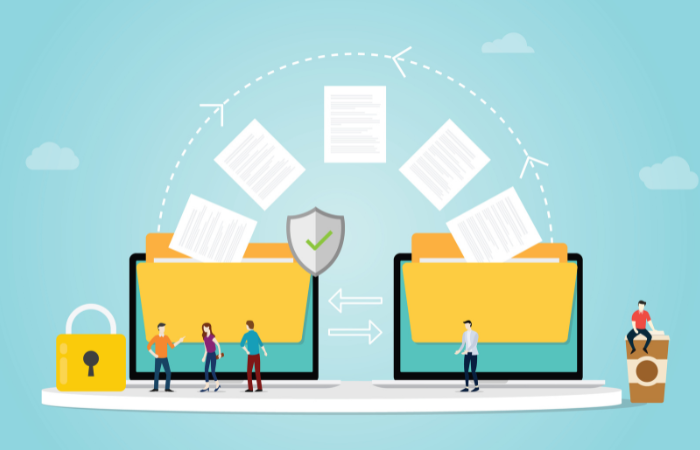

Easy! How to transfer data via Bluetooth

Easy! How to transfer data via Bluetooth
Bluetooth allows you to smoothly transfer data between computers and smartphones, and even between smartphones. What are its benefits? We'll also introduce a simple guide to using it.
1. Benefits of transferring data via Bluetooth
Bluetooth is a technology that allows wireless communication between digital devices over short distances. Recently, many digital devices, including headphones, speakers, keyboards, and more, are Bluetooth-compatible, in addition to computers and smartphones.
Bluetooth communication does not require an internet connection such as Wi-Fi. It can be used in a variety of ways, such as listening to music on your iPhone wirelessly or typing on a wireless keyboard. Since no cables are required, it is convenient and hassle-free even when you are out and about. Another benefit is that it consumes less power.
2. How to check if your device supports Bluetooth
Bluetooth can be used on many computers and smartphones currently on the market. So how do you check if your device is Bluetooth-compatible? On a Windows computer, you can check by selecting "Device Manager" from Settings. On Mac OS, most versions X and above support Bluetooth as standard. However, be aware that supported Bluetooth versions may vary depending on the model, whether Windows or Mac. Communication may not be possible depending on the Bluetooth version combination. Be sure to check the Bluetooth version carefully.
3. How to transfer data via Bluetooth
3-1. Computers and smartphones
To transfer data using Bluetooth between a computer and smartphone, you must first pair them (depending on the computer, you may need to turn on the "Bluetooth sharing" function beforehand). First, place the computer and smartphone close to each other and turn on Bluetooth in the smartphone's settings screen. This will allow the computer to detect nearby devices, so simply select the device you want to communicate with and pair it. Depending on the device, you may be asked to confirm that the numbers displayed on both devices are the same before completing the pairing. This prevents unexpected devices from being paired with each other.
If pairing doesn't work, make sure that Bluetooth is turned on on both devices. Also, try turning Bluetooth off and on again, or restarting the device. A weak battery or nearby interference from electrical appliances or railway overhead lines can cause pairing issues.
Once pairing is complete, if you're transferring data from a smartphone, select the data you want to send on your smartphone, then select Bluetooth in the share function and send. If you're sending from a Windows computer, select "Bluetooth Device" from the "Send" menu. If you're sending from a Mac computer, select "Send File to Device" from the Bluetooth menu, select the file, and send it. These instructions may differ depending on your operating system.
Data transfer via Bluetooth is easy and requires no further configuration once pairing is complete. However, the communication speed is slower than Wi-Fi, so sending large files may take a long time. If this is your first time using Bluetooth, try transferring a small file first to see if it works.
3-2 Between smartphones
The same pairing setup is required between smartphones. Just like with a computer, open the Bluetooth screen from the settings menu, detect peripheral devices, and set up pairing. To send files, just select the file and share it via Bluetooth, just like between a computer and a smartphone.
summary
Bluetooth allows wireless communication between devices over short distances without an internet connection, making it convenient for transferring data such as photo files. Check the Bluetooth version of your device and try pairing it with your computer and smartphone, or with another smartphone. It can also be used to back up apps and contacts, so be sure to take advantage of Bluetooth data transfer.
File Sharing: A Beginner's Guide Column List
- File Sharing: An Introduction
- The dangers of "shadow IT" that you should be aware of before using data integration services
- File sharing services: 5 things you need to know when selecting one
- Pitfalls of free file transfer services! Information leakage prevention
- Understand the roles and types of protocols used for file transfer
- Is a file sharing service the best option for sending and receiving large files?
- The ever-increasing volume of data is making file transfer a struggle.
- Three benefits of large-capacity file transfer software that prioritizes ease of use
- Four things to be aware of when data integration
- How to data integration?
- file transfer via HTTP? ISDN will end in 2020
- MFT enables file transfer that FTP cannot.
- No more need for USB flash drives? 3 ways to transfer data over LAN
- Improve business efficiency with data integration platform! Three benefits
- Convenient! How to use Bluetooth for file transfer
- How to use file transfer services that you may have thought you knew about
- Key points to consider when choosing data integration middleware
- Recommended file transfer services to improve business efficiency
- A reliable ally for data integration! Efficient conversion and effective utilization through ETL
- How to data integration with Salesforce
- data integration middleware makes your work more efficient
- This is recommended! data integration service that is conscious of security
- Efficient data integration and siloed system integration through EAI
- When integrating systems with overseas bases, improve work efficiency with English-language tools!
- Three benefits of centrally managing system integration
- A DI platform that data integration scattered throughout the company