

HULFT Square Technical Column [Connecting Edition] Connecting to Zuora - Subscription business with HULFT Square
HULFT Square Technical Column [Connecting Edition] List
- I connected to CloudSign
- I connected to freee
- Connecting to Zoho CRM (Customer Relationship Management System)
- Connecting to Zuora: Subscription business with HULFT Square
- I connected to Adobe Acrobat Sign.
- I connected it to GMO Sign.
Connecting to Zuora: Subscription business with HULFT Square
Introduction
When purchasing something, it has become common to pay to "rent" it for a certain period of time rather than "own" it. This sales format is called a "subscription," and a typical example of a service that can be purchased individually is Netflix. Netflix does not "own" movies, but rather allows customers to "rent" the right to watch movies for a certain period of time.
This trend is also spreading in the world of web services, and is becoming common in the business world with services such as Office 365 and AWS. Office 365 is a service that provides customers with the right to use Microsoft's office products, and AWS is a service that provides customers with the right to use Amazon's server resources for a limited contract period.
In line with this trend, if you want to sell your own developed web services as a subscription, you will face the hurdle of manually setting prices and aggregating sales figures. This is because there are many variable factors in the price and contract terms of subscriptions, as listed below.
- Flexible license number and contract period
- Procedures for canceling the service
- Support for options to add to contracts and pay-per-use pricing based on service usage
To realize a subscription business using HULFT Square, we will now link it with Zuora, a cloud service that provides everything from complex pricing to sales aggregation. We created a simple billing process flow that passes billing information aggregated by Zuora to an accounting system or web payment agency.
What is Zuora?
Zuora offers the following categorized features for implementing subscription contracts:
- Subscription contract menu management and automatic invoice generation (Zuora Billing)
- Create a quote from Salesforce for subscription contracts (Zuora CPQ)
- Create revenue reports by importing purchase orders and invoices (Zuora Revenue)
- Collection of accounts receivable from subscription contracts (Zuora Collect)
- Developing unique workflows to support your original business processes (Zuora Central Platform)
In this example, to build a subscription billing system using HULFT Square, we will link Zuora's Billing function with an accounting system and a web payment agency service as shown in the diagram below.
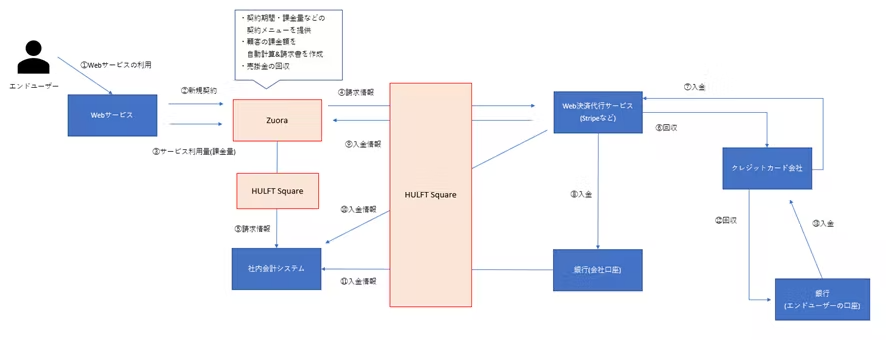
- End users sign a contract on the web service based on the subscription contract menu set up on Zuora, and the actual usage amount is linked to Zuora.
- Zuora automatically calculates the costs incurred based on the registered contract details and creates billing information.
- Zuora kicks off the trigger for the collection of accounts receivable. In the diagram above, the actual collection work is outsourced to a separate web payment processing service.
- HULFT Square data integration between Zuora, the web payment agency service, and the in-house accounting system.
Verification details
This time, we will use HULFT Square to confirm that the following processes can be performed.
- Obtain the invoice amount calculated by Zuora (corresponding to steps ④ and ⑤ in the diagram above)
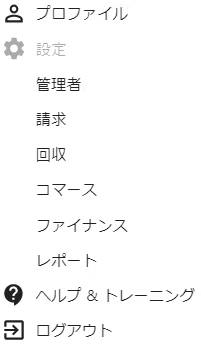
Click "Admin" from the account menu in the top right.
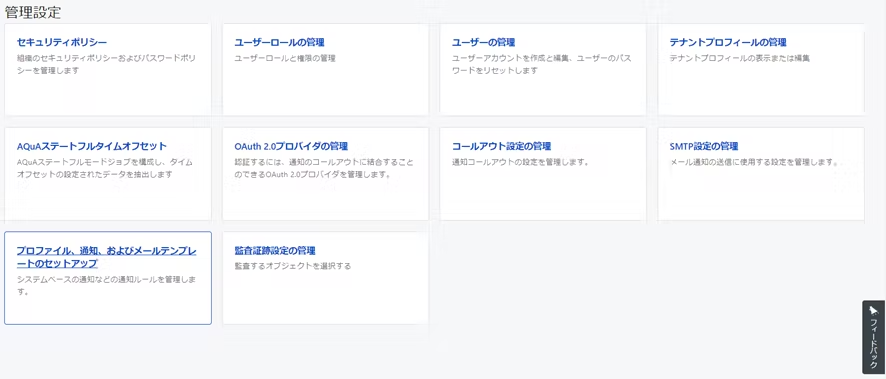
Click Manage Users.
A list of users will be displayed, so click on the user to whom you want to add an OAuth client. At the bottom of the user settings screen, there is a place to create an OAuth client as shown below, so enter the client name and click "Create".
- When you click "Create," the client ID and client secret (although it's written as "client secret") will be displayed. Save them as you will need them later in HULFT Square settings. Please note that the client secret cannot be viewed later.
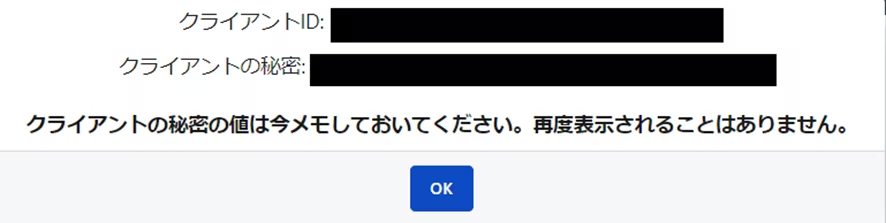
How to set up HULFT Square
Let's create a script in HULFT Square that will successfully authenticate with Zuora's OAuth and retrieve the invoice amount.
HULFT Square supports standard OAuth authentication, but to successfully authenticate with Zuora, you must obtain and apply an access token within the script.
Connection Settings
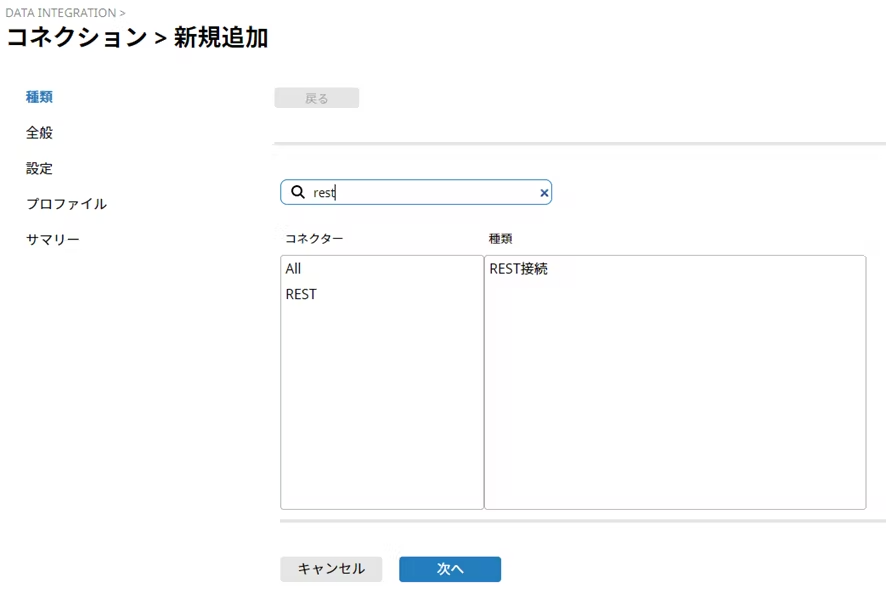
Select "REST Connection" as the connector type.
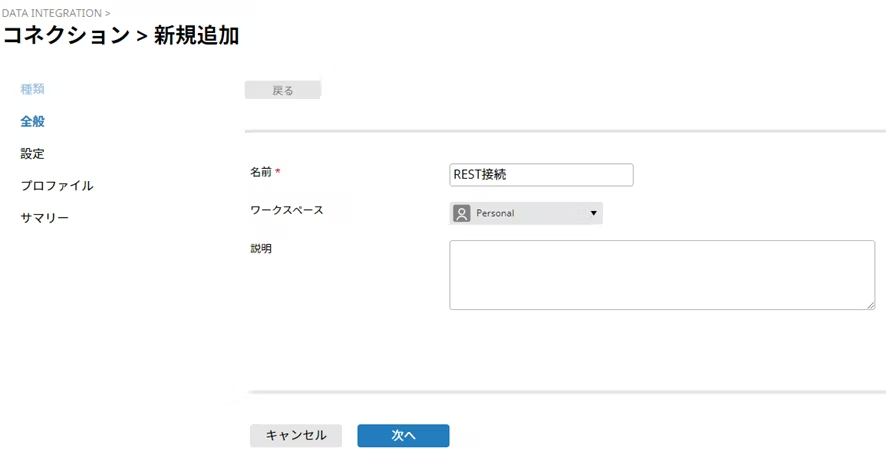
Name: Any name you like. I entered "REST Connection_zuora_test" here.
Workspace: Any
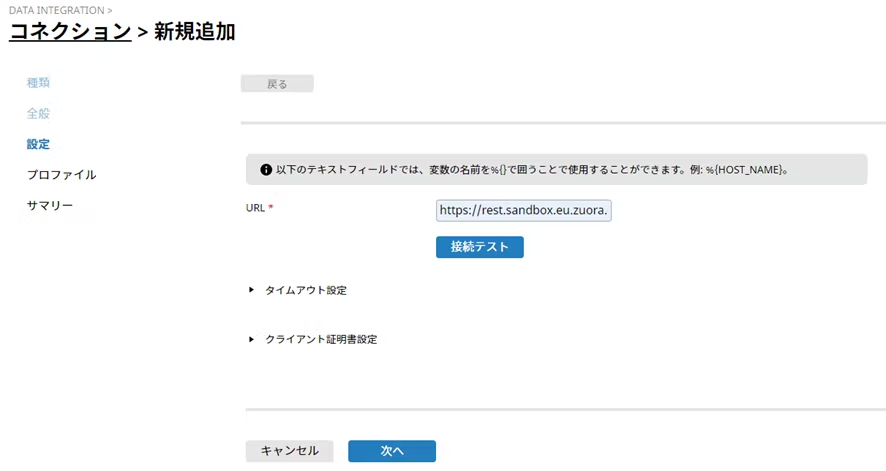
URL: Enter the Zuora URL. Please see the following page for a list of available URLs.
https://www.zuora.com/developer/api-references/api/overview/#section/Introduction/Access-to-the-API
This time, we entered the test URL "https://rest.sandbox.eu.zuora.com".
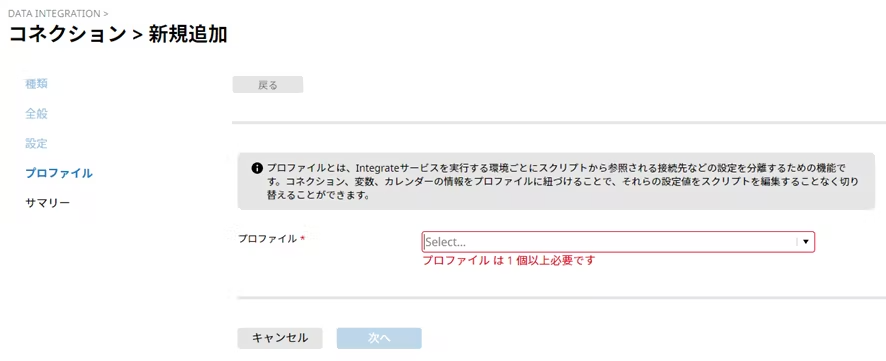
Profile: Any
Once the connection is set up, you can begin creating the script.
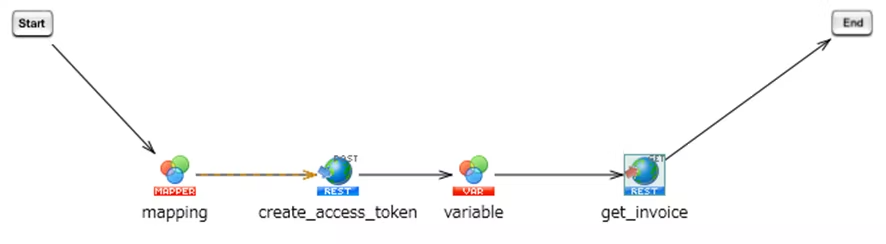
The script we will create this time will be something like this:
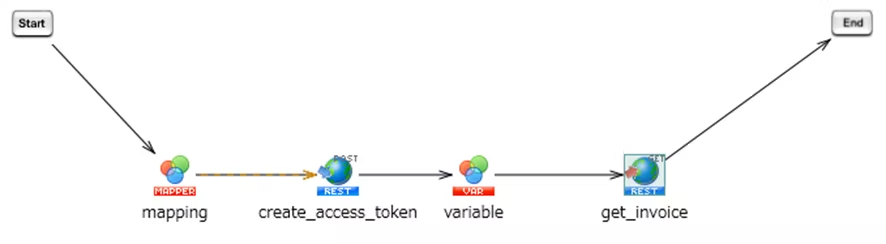
- Use "create_access_token" to obtain an access token for successful Zuora OAutn authentication.
- Get Zuora invoice data with "get_invoice"
How to set create_access_token
To obtain your Zuora access token, create the following new script variable:
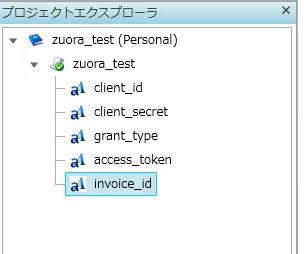
- client_id
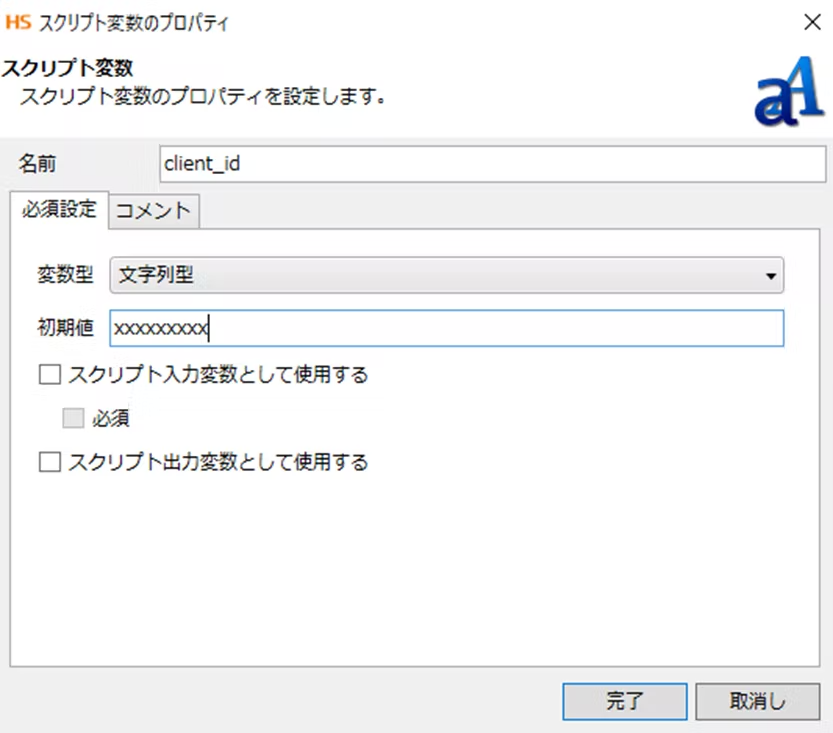
Default value: Enter the client ID you found in your Zuora user settings.
- client_secret
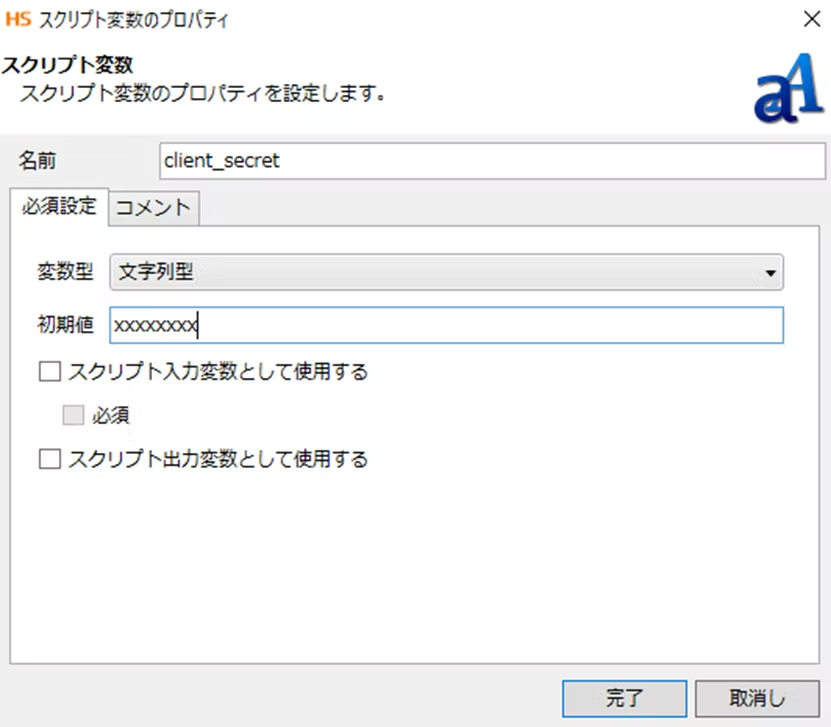
Default value: Enter the client secret you found in your Zuora user settings.
- grant_type
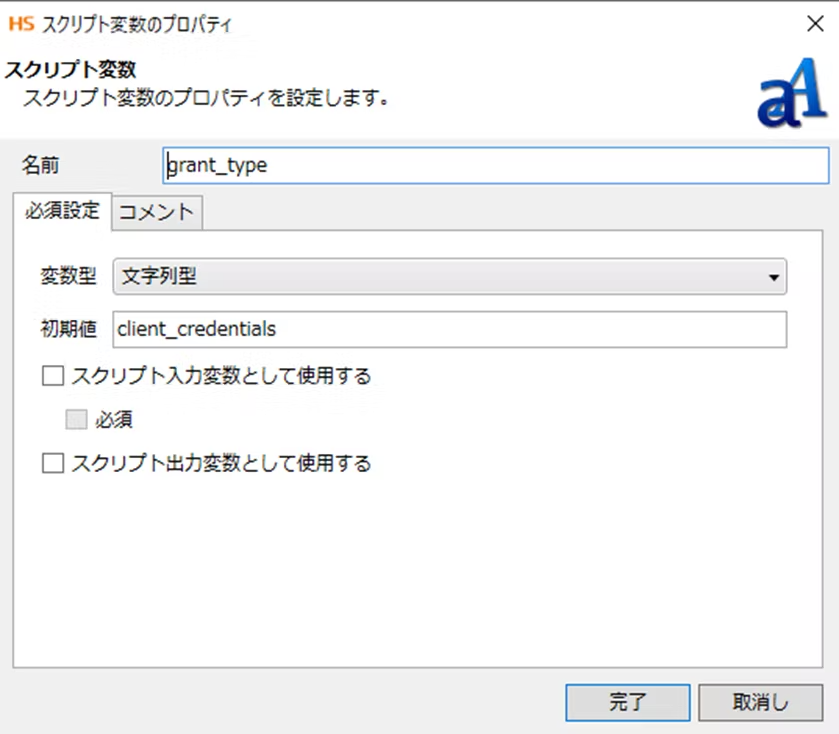
Default value: Enter "client_credentials".
- access_token
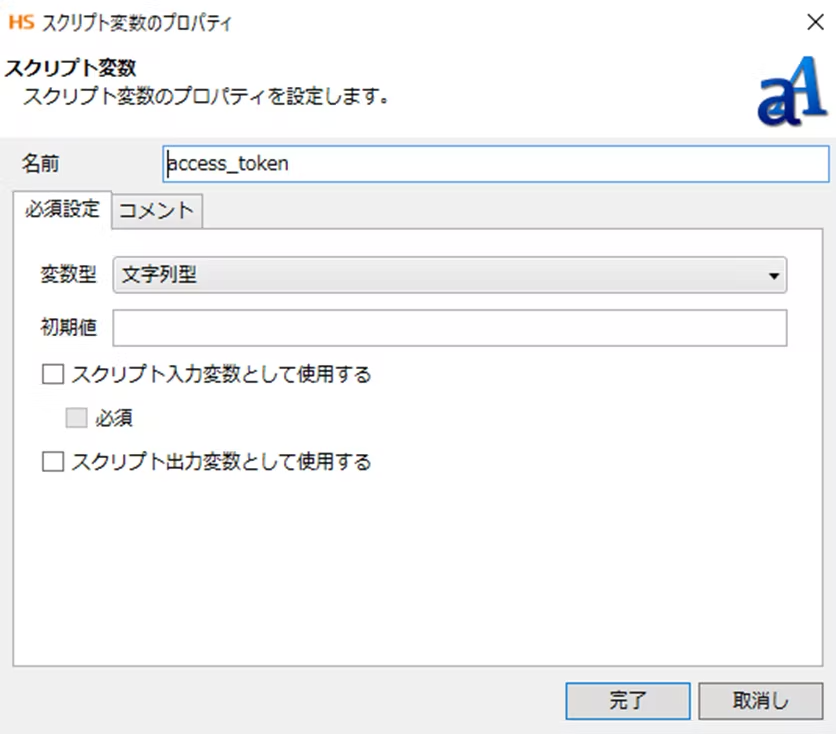
Initial value: Do not enter anything. The value obtained by the script will be assigned later.
- invoice_id
- This script variable is used by "get_invoice" to specify which invoice to retrieve.
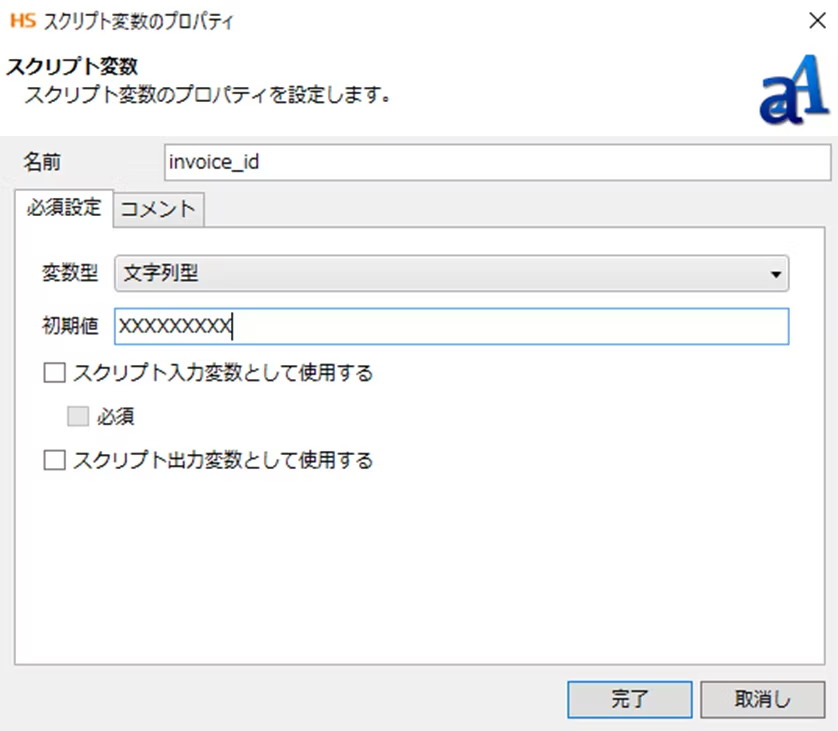
Default Value: Any. For testing purposes, try entering a specific Zuora invoice number.
Once the variables are ready, we can set up the HTTP request.
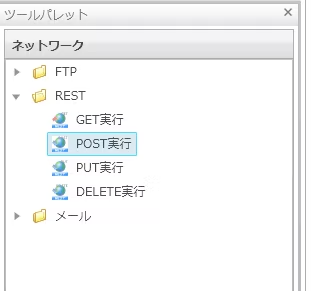
From the Tool Palette on the right side of the canvas, select Network > REST > Execute POST and drag it onto the canvas.
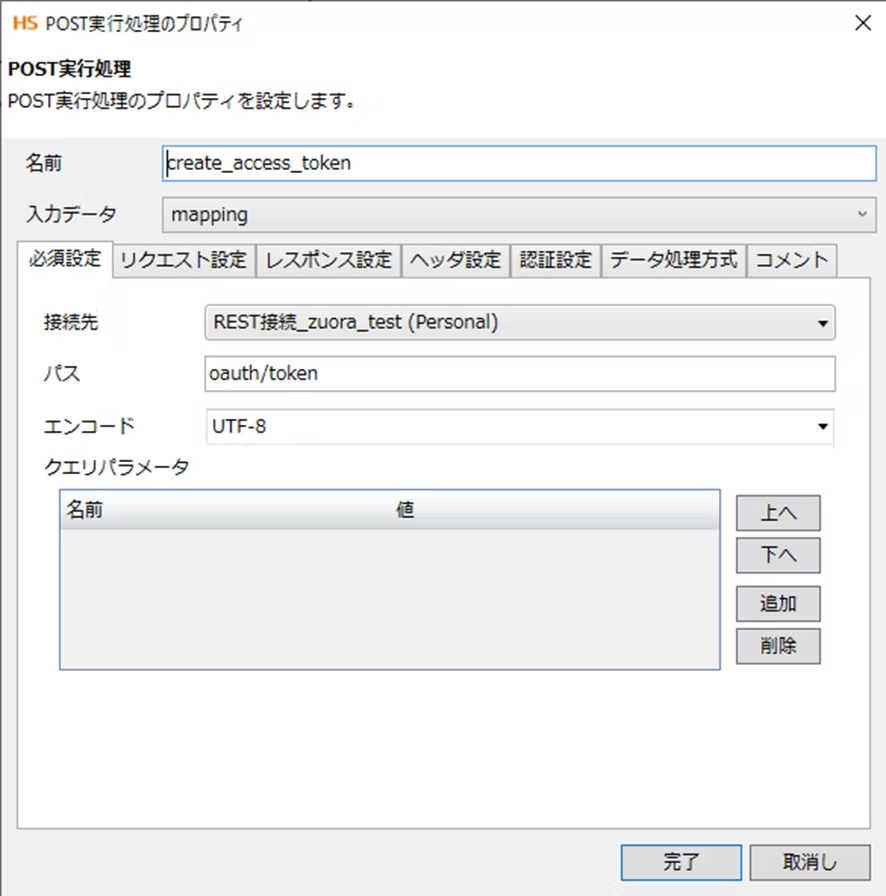
Required Settings tab
- Name: Any name. In this example, we entered "create_access_token".
- Destination: Select the setting you created in Connection Settings.
- Path: oauth/token
This is the path to issue the OAuth access token.
For more information about this pass, please see the following page.
https://www.zuora.com/developer/api-references/api/operation/createToken/ - Encoding: UTF-8
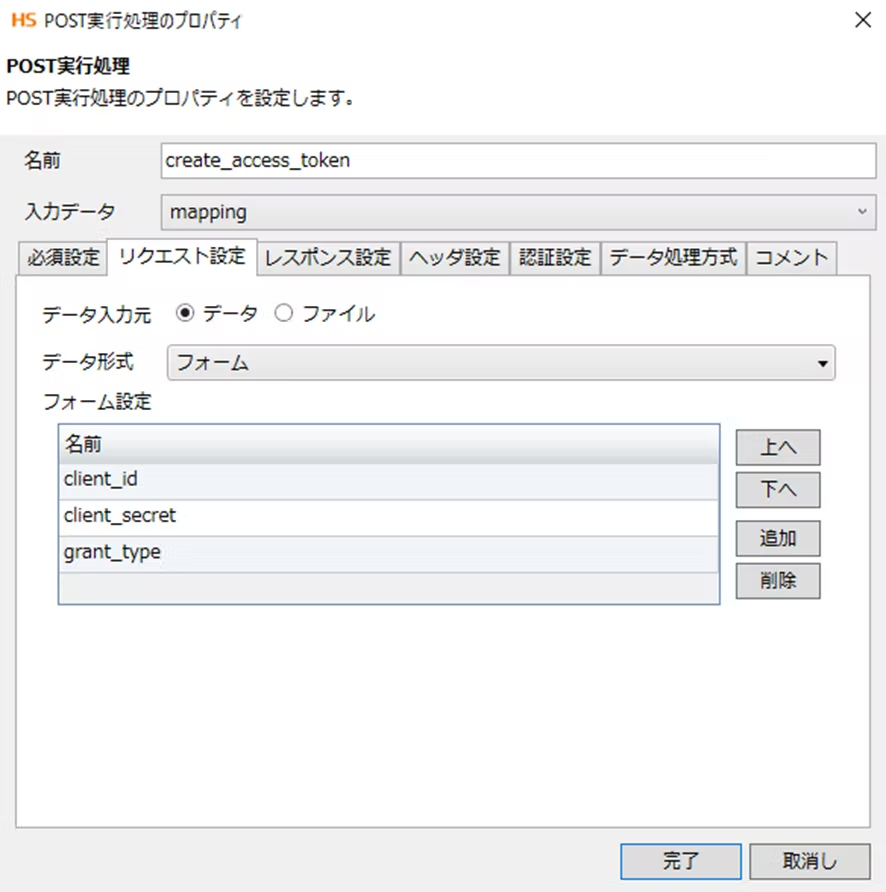
Request Settings tab
- Data input source: Data
- Data format: Form
- Form settings: Add client_id, client_secret, grant_type
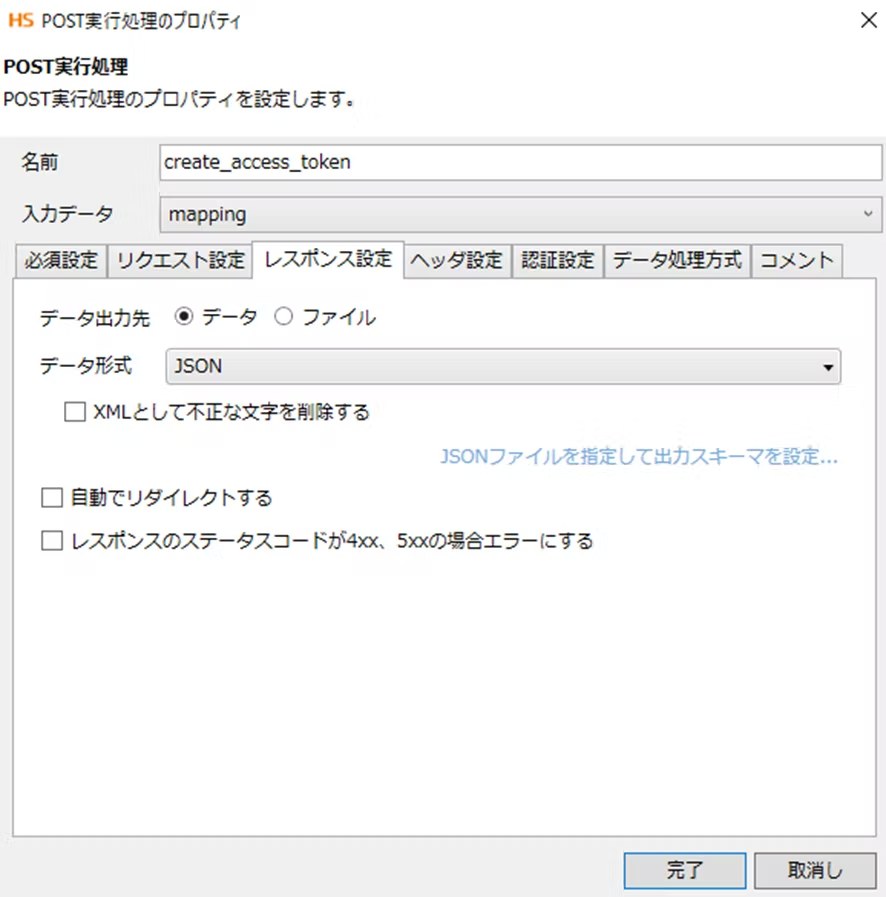
Response Settings tab
- Data format: JSON
Please create the JSON file to be set as the output schema by copying it from the Response Samples on the following page.
https://www.zuora.com/developer/api-references/api/operation/createToken/
Once you have completed this, click "Finish" to complete the "create_access_token" settings.
Next, create a mapping setting to place before "create_access_token".
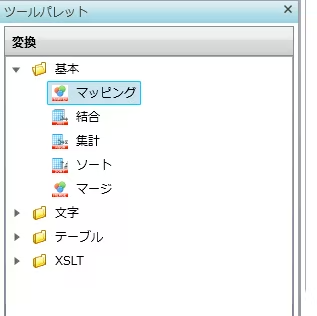
In the Tool Palette, place "Transformation" > "Basic" > "Mapping" before "craete_access_token".
The mapping settings are as follows:
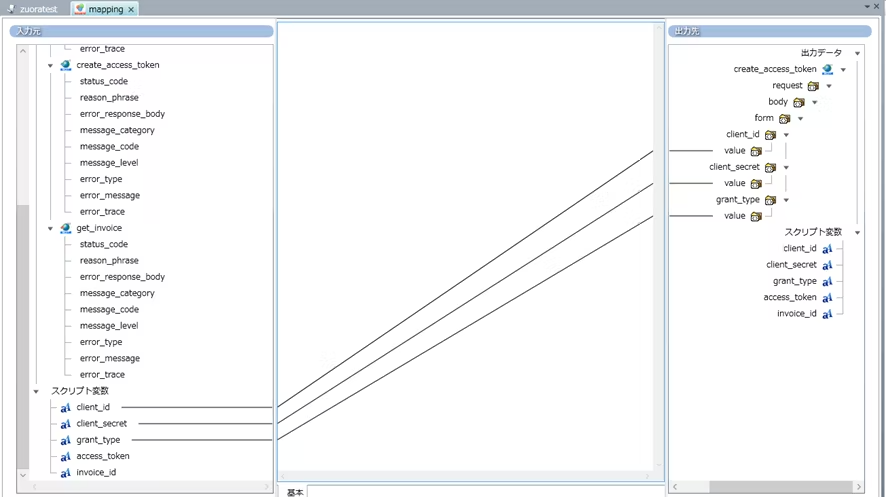
The "client_id", "client_secret", and "grant_type" script variables are mapped as request data for "create_access_token".
Additionally, to save the value of the access token obtained by "create_access_token" to the script variable "access_token," select "Basic" > "Processing" > "Variable Assignment" from the "Tool Palette" and place it after "create_access_token."
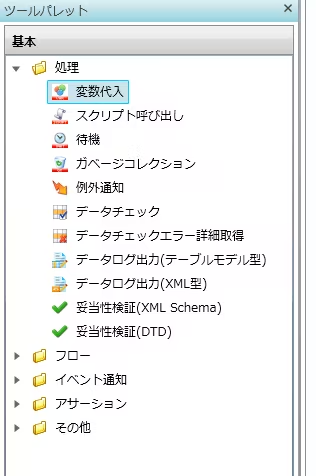
The variable assignment settings are as follows:
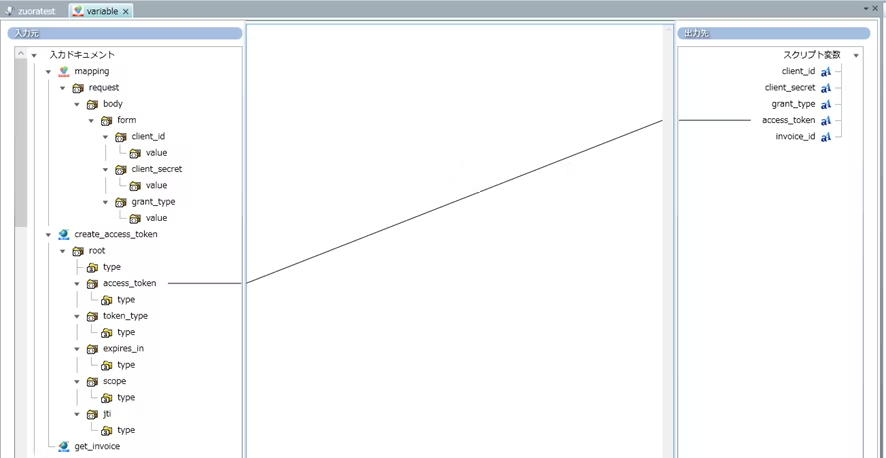
The value of "access_token" obtained by "create_access_token" is linked to the script variable "access_token".
Finally, we will create “get_invoice”.
From the Tool Palette on the right side of the canvas, select Network > REST > GET Execute and drag it onto the canvas.
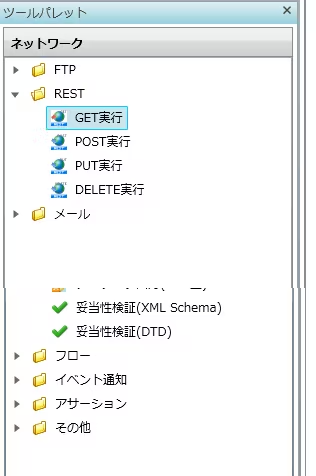
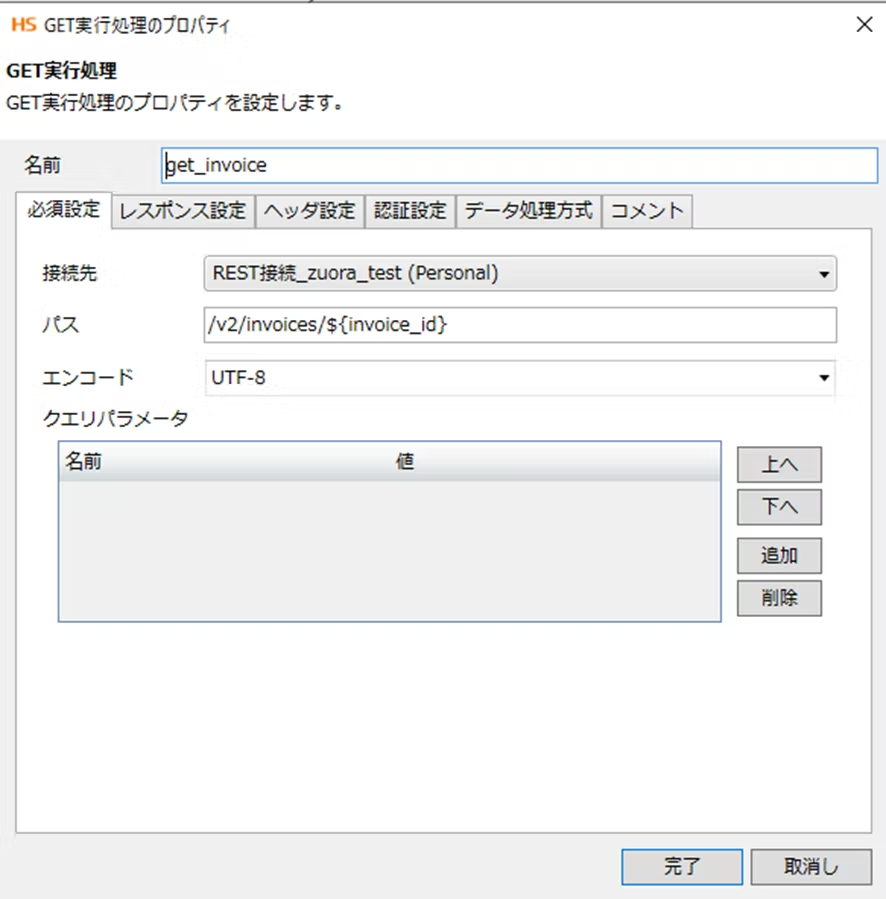
Required Settings tab
Name: Any. In this example, we have entered "get_invoice".
- Destination: Select the setting you created in Connection Settings.
- Path: /v2/invoices/${invoice_id}
The value of the script variable "invoice_id" created in advance will be entered as the path.
By making a GET request to this path, data for the specified invoice number will be returned in JSON format, including the invoice amount.
For more information about this pass, please see the following page.
https://www.zuora.com/developer/api-references/quickstart-api/operation/getInvoice/ - Encoding: UTF-8
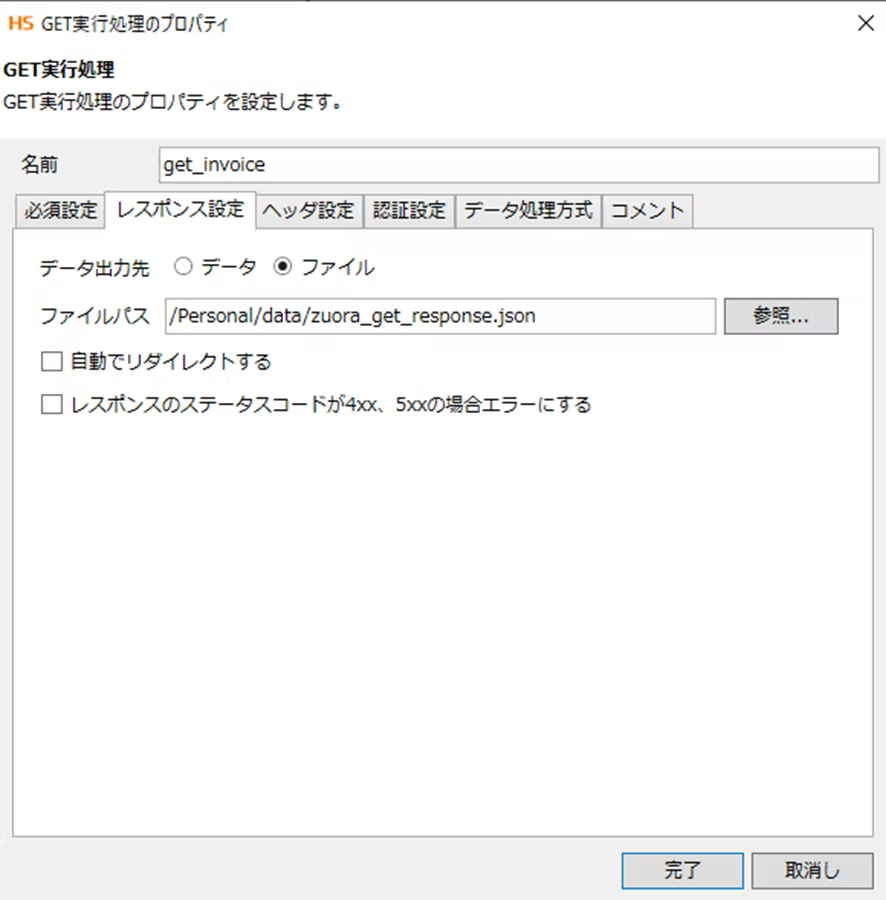
Response Settings tab
- Data output destination: File. In this case, the invoice data file will be generated directly on HULFT Square storage.
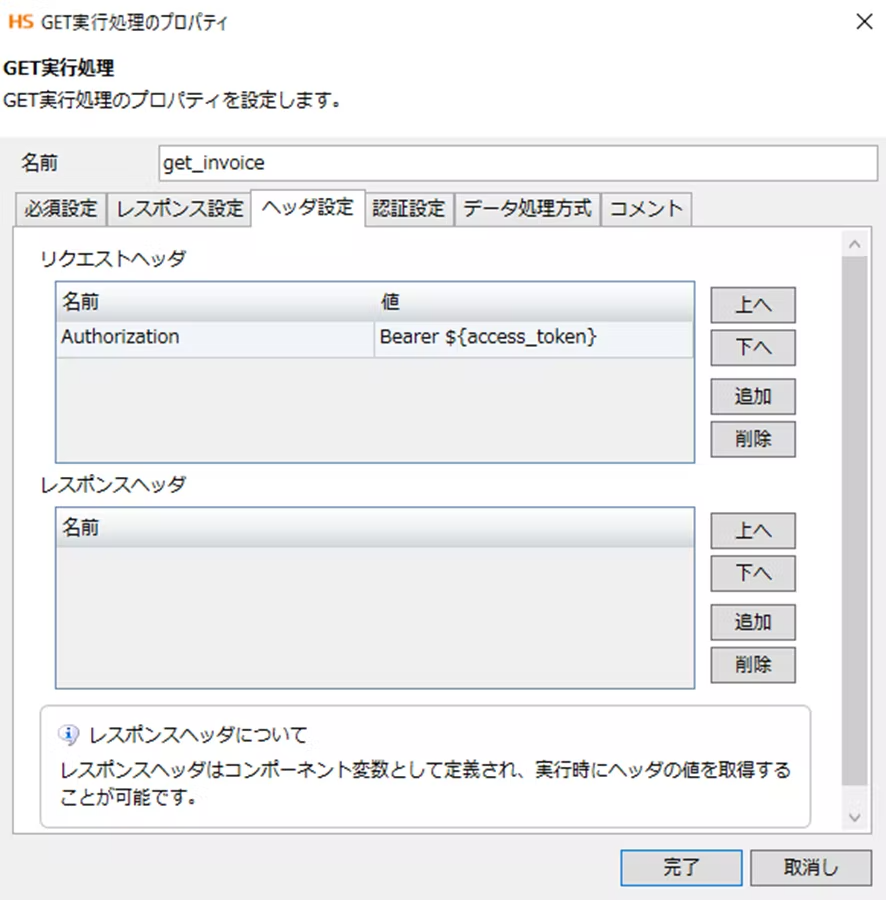
Header Settings tab
- Request Header: Add the "Authorization" header with the value "Bearer ${access_token}". The value obtained by "create_access_token" and saved in the script variable "access_token" will be used here.
With this, the following script should be completed.
Run it and check that the invoice data for the invoice number specified in "invoice_id" is generated on HULFT Square storage.
Conclusion
This time, we introduced how to obtain the billing amount calculated by Zuora.
Zuora also accepts other operations via API, and the official API reference can be found here.
https://www.zuora.com/developer/api-references/api/overview/
The page also provides a list of major API usage examples.
https://www.zuora.com/developer/quickstart-api/tutorial/create-products-and-prices/
We hope this article helps you utilize HULFT Square for your subscription business.
HULFT Square Technical Column [Connecting Edition] List
- I connected to CloudSign
- I connected to freee
- Connecting to Zoho CRM (Customer Relationship Management System)
- Connecting to Zuora: Subscription business with HULFT Square
- I connected to Adobe Acrobat Sign.
- I connected it to GMO Sign.