
Customers who have signed up for DataSpider Cloud
About inquiries
Customers who have a contract with our company can use our technical support services by logging in to my HULFT and registering a license.
1. Log in to myHulft.
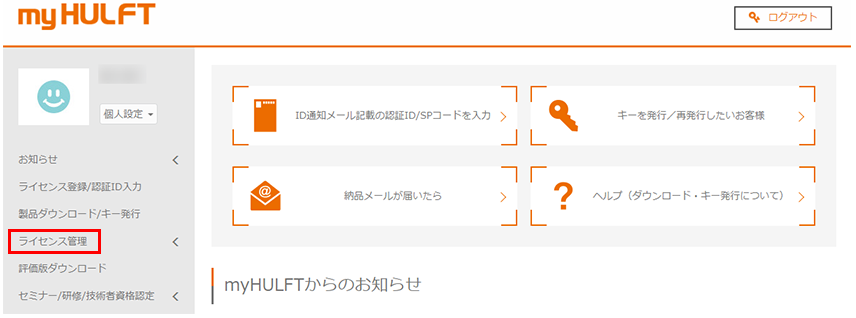
2. Select [License Management] from the left menu.
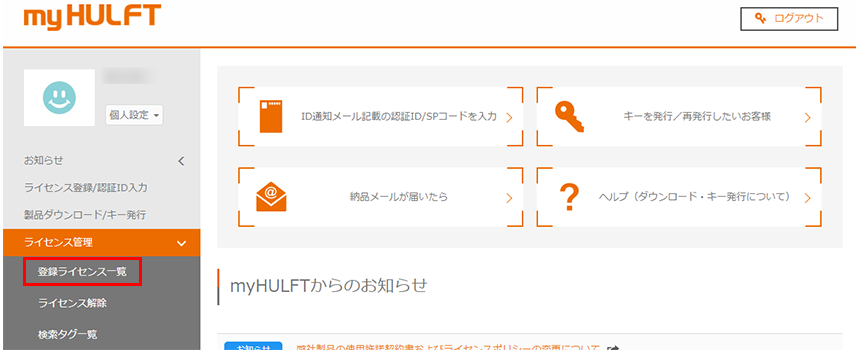
3. Select [Registered License List] from the left menu.
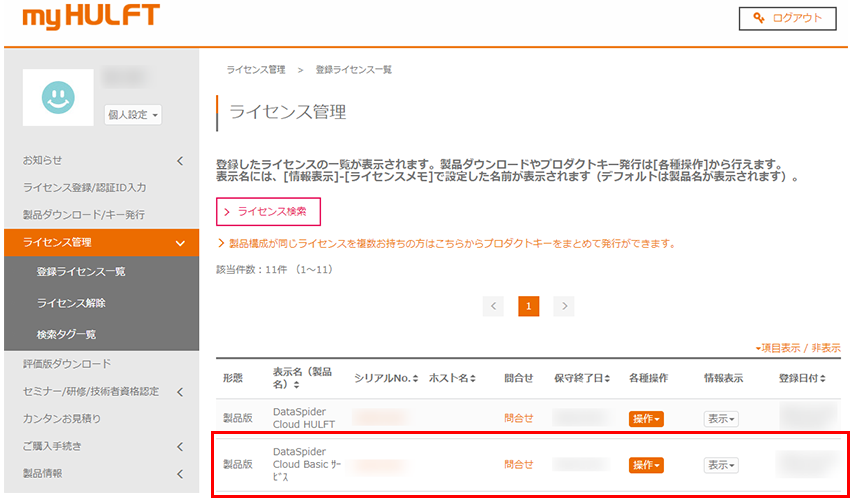
4. A list of registered licenses will be displayed.
Click Inquire for the license with a serial number that begins with "LSDACA".
Licenses beginning with LSDACA are licenses for the DataSpider Cloud linked server that you purchased, and the displayed name (product name) in the list is "DataSpider Cloud <Grade> Service."
DataSpider Cloud license and serial number
DataSpider Cloud issues serial numbers for each license you purchase. There are two types of serial numbers: those issued for the linked server itself (starting with LSDACA) and those issued for adapters, network options, etc. (starting with LSDOCA).
When contacting technical support, including inquiries regarding options, please log in using the license number beginning with "LSDACA", which is the serial number of the linked server itself, and then contact us.

- To check your inquiry history and support responses, you must log in using the same serial number you used to log in when you made your inquiry.
Please note that if you are logged in using an option or a different serial number, you will not be able to view your inquiry history or responses from support, even if you log in using the serial number of the main unit.
To check which serial number you are currently logged in with, go to your "Customer My Page" on the technical support site, where your login information will be displayed on the left side.
5. You will be redirected to the new inquiry screen on the technical support site.
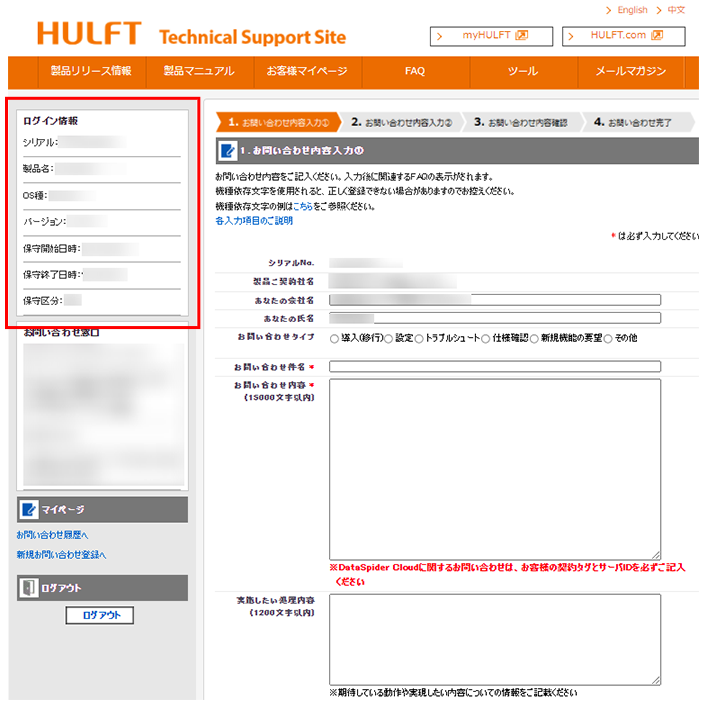
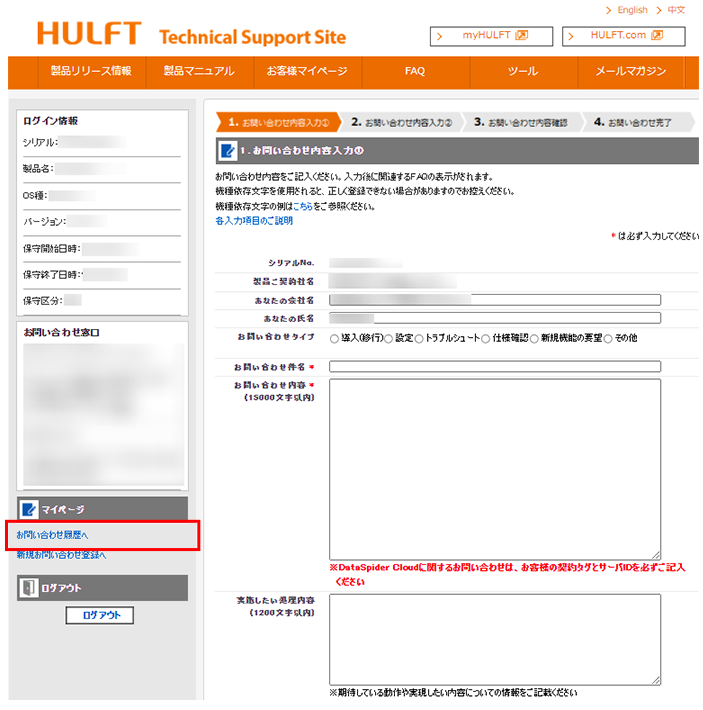
6. Check your login information.
Serial number: Serial number starting with LSDACA
Product name: DataSpider Cloud [Entry/Basic/Advance] Service
7. Please contact us as follows according to the content of your inquiry.
General enquiries
Inquiry subject: [DSC] [Company name] Inquiry summary
Inquiry details: Please enter the details of your inquiry.
Please be sure to include the following three items in your inquiry:
- Contract Tag
- Server ID
- Server Name
Please see below for how to check the contract tag, server ID, and server name.
FAQ No. 31886 [DataSpider Cloud] How to check contract tags, server ID, and server name
Construction and work request inquiries
Please refer to the "To customers who have signed up for options"before contacting us.
Checking past inquiries
You can check your past inquiry history by clicking [My Page] on the left and then [Inquiry History].
When we have additional questions about a previous inquiry
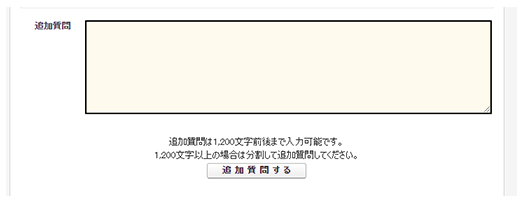
From the list of inquiry history, click on the relevant inquiry, fill out the additional question form, and click the [Ask additional question] button.
If your question is unrelated to a previous inquiry, please submit a new inquiry.
If you log in directly to the technical support site, you may not be able to view past inquiry history or responses from technical support if your login is not linked to the serial number of the product you are inquiring about.
Please make sure that the login information displayed on the left side of your customer page matches the serial number of the product you are inquiring about.
If they do not match, please log out of the technical support site and access the [Contact Us] page using the product serial number you are contacting us about through myHulft.