
Customers who have signed up for DataSpider Cloud
License registration
To use DataSpiderCloud, please register the license you purchased.
To register a license, you must first register as a my HULFT user.
What is my HULFT?
my HULFT is a customer-only page for downloading software such as products and evaluation versions, and issuing the various keys required to use the products and evaluation versions.It also provides functions for checking purchased license information and support-related information.
Please register your license on my HULFT according to ID notification (delivery email) sent to you after your purchase.
- To register a license, you must register as a user with my HULFT. For more information about my HULFT, please click here.
1. Log in to myHulft.
2. Select [License Registration/Authentication ID Input] from the left menu.
![2. Select [License Registration/Authentication ID Input] from the left menu.](https://www.saison-technology.com/service/.assets/technical-support-dsc-license-registration-01.png)
3. Enter the "Authentication ID" and "SP Code" listed in the [ID notification (Delivery Email)] and click the [Search] button.
![3. Enter the "Authentication ID" and "SP Code" listed in the [ID notification (Delivery Email)] and click the [Search] button.](https://www.saison-technology.com/service/.assets/technical-support-dsc-license-registration-02.png)
4. The products and options associated with your license will be displayed.
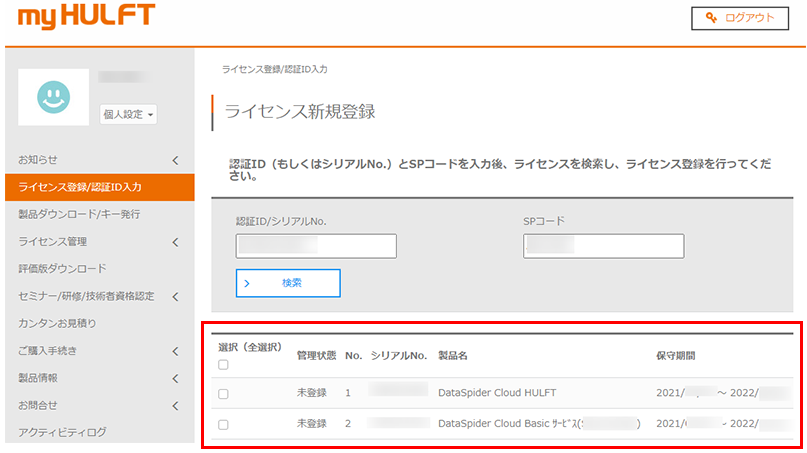
5. The license you purchased will be displayed. Select the check box on the left and click the [Register License] button. Registration is now complete.
![5. The license you purchased will be displayed. Select the check box on the left and click the [Register License] button. Registration is now complete.](https://www.saison-technology.com/service/.assets/technical-support-dsc-license-registration-04.png)
6. You can check the registered license in [Product Download/Key Issue] on the left menu.
- DataSpider Cloud does not issue keys or provide download modules.
![6. You can check the registered license in [Product Download/Key Issue] on the left menu.](https://www.saison-technology.com/service/.assets/technical-support-dsc-license-registration-05.png)
DataSpider Cloud license and serial number
DataSpider Cloud issues serial numbers for each license you purchase.
There are two types of serial numbers: those issued to the linked server itself, which begin with LSDACA, and those issued to adapters, network options, etc., which begin with LSDOCA.
When contacting technical support, including inquiries regarding options, please log in using the license number beginning with "LSDACA", which is the serial number of the linked server itself, and then contact us.

- To check your inquiry history and support responses, you must log in using the same serial number you used to log in when you made your inquiry.
Please note that if you are logged in using an option or a different serial number, you will not be able to view your inquiry history or responses from support, even if you log in using the serial number of the main unit.
To check which serial number you are currently logged in with, go to your "Customer My Page" on the technical support site, where your login information will be displayed on the left side.