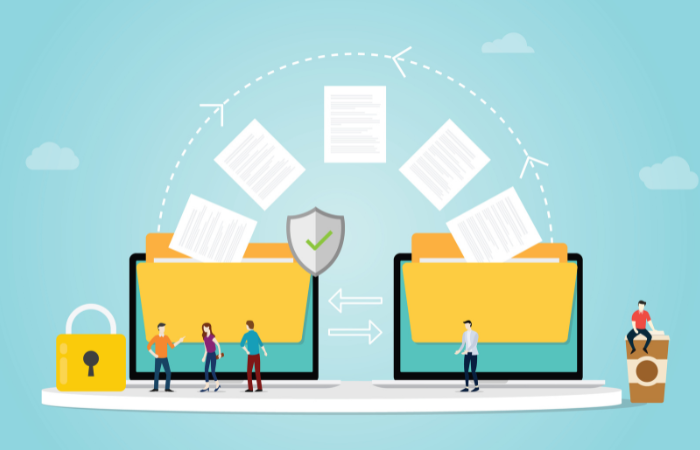

Wi-Fi tips for smooth data transfer

Get started right away with Wi-Fi for smooth data transfers
It would be convenient if you could smoothly transfer large files such as images, videos, and music between your smartphone and PC, or between smartphones, using Wi-Fi. In this article, we will introduce how to transfer data over Wi-Fi.
1. Email attachments and USB connections are a hassle. What's an easier way to transfer data?
Photos, videos, and other data keep piling up on smartphones. To organize this data, many people connect their smartphones to their PCs via USB to transfer data. However, when connecting via USB, don't you find it time-consuming to remove the USB terminal cap on your smartphone, or to plug and unplug the cable? Sending data as an email attachment is one option, but there are limits to the amount of data you can send and receive, and the speed can be disappointing.
If you have Wi-Fi at home, it's convenient to be able to transfer data between your smartphone and PC via Wi-Fi. Backing up images and videos on your PC makes file management easier and also reduces the amount of data on your smartphone, killing two birds with one stone. Also, if you use an app with a backup function, you can save backup files to your PC. You can also use it to back up your LINE chat history.
2. What types of data transfer methods are available in a Wi-Fi environment?
2-1 How to use standard smartphone functions (advantages and disadvantages)
Many smartphones, including Xperia, GALAXY, and iPhone, come with a standard app for data transfer. Once you've set it up, you can easily transfer data over Wi-Fi. The process varies depending on the smartphone, but with an Xperia, for example, you first connect your PC and smartphone via USB, then perform the initial setup on the PC and pair it on the smartphone. After that, simply connect the smartphone to your PC using USB connection mode. The advantage of using these standard features is that you don't have to go through the trouble of installing a dedicated app. However, you won't be able to use advanced features, such as copying text typed on your PC to your smartphone's clipboard.
2-2 How to use free and paid apps (advantages and disadvantages)
In addition to using the standard functions of your smartphone, you can also use apps that are specialized for data transfer. The functions and ease of use vary depending on the app. Choose the app that best suits your needs. For example, there are apps like the following:
AirDroid
AirDroid is an app that conveniently connects your Android device to your PC. You can view, play, and manage photos and music on your smartphone from your PC screen. You can also copy text from your PC to your smartphone's clipboard, which is useful when you want to send long messages via email or LINE. It also has a function that displays notifications for incoming calls, SMS, and apps on your PC.
It is free to use, but there is also a paid version that includes theft prevention and support. The benefits of the paid version include the ability to transfer large files up to 1GB between devices such as smartphones and PCs, and the ability to remotely control the camera on Android devices.
Xender
This app allows you to share files between Android, iPhone, and PC via Wi-Fi. You can transfer a variety of files, including images, music, videos, and apps. It can be used without installing any software on your PC. It's also convenient because it allows you to transfer data between iPhone and Android devices. It's a popular app due to its speedy data transfer. It's free to use, but ads are displayed.
These Wi-Fi data transfer apps are also useful for backing up data when changing devices. Even if your device is damaged, you want to make sure your important data remains. If your smartphone or tablet's internal memory is full, transferring your data to your PC is a great way to free up memory. On your PC, you can also delete unnecessary images and videos and back up your data.
When using the app, be sure to check for update information. For security reasons, we recommend always updating to the latest version.
summary
Using Wi-Fi makes data transfer even more convenient. Why not take this opportunity to organize your ever-growing collection of photos and videos, back up your LINE chat history, and back up your old apps? You can try out the standard features on your smartphone, or find your favorite data transfer app. Find the method that's right for you.
File Sharing: A Beginner's Guide Column List
- File Sharing: An Introduction
- The dangers of "shadow IT" that you should be aware of before using data integration services
- File sharing services: 5 things you need to know when selecting one
- Pitfalls of free file transfer services! Information leakage prevention
- Understand the roles and types of protocols used for file transfer
- Is a file sharing service the best option for sending and receiving large files?
- The ever-increasing volume of data is making file transfer a struggle.
- Three benefits of large-capacity file transfer software that prioritizes ease of use
- Four things to be aware of when data integration
- How to data integration?
- file transfer via HTTP? ISDN will end in 2020
- MFT enables file transfer that FTP cannot.
- No more need for USB flash drives? 3 ways to transfer data over LAN
- Improve business efficiency with data integration platform! Three benefits
- Convenient! How to use Bluetooth for file transfer
- How to use file transfer services that you may have thought you knew about
- Key points to consider when choosing data integration middleware
- Recommended file transfer services to improve business efficiency
- A reliable ally for data integration! Efficient conversion and effective utilization through ETL
- How to data integration with Salesforce
- data integration middleware makes your work more efficient
- This is recommended! data integration service that is conscious of security
- Efficient data integration and siloed system integration through EAI
- When integrating systems with overseas bases, improve work efficiency with English-language tools!
- Three benefits of centrally managing system integration
- A DI platform that data integration scattered throughout the company