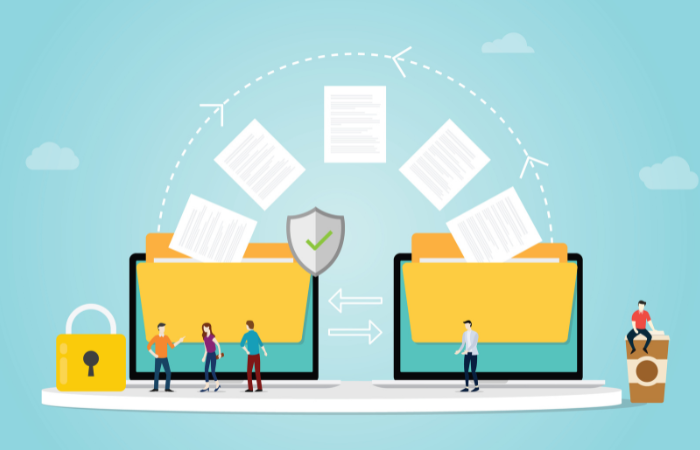

What is the difference between data transfer and charging? Basics of USB cables and things to be aware of

What is the difference between data transfer and charging?
Basics and precautions for using USB cables at work
Many business people bring tablets or other devices with them when visiting clients. For example, when there is a large amount of documents, transferring the data to a tablet device and bringing it with you is less bulky than printing them out. There are also cases where you take pictures on your smartphone and then import them into your PC when you get back to the office.
For this type of data transfer, a USB cable is generally used. If you're having trouble transferring data, check the data transfer method and the type of USB cable. There are also types of USB cables that are only for charging.
However, if you frequently transfer data using a USB cable, there is a risk that confidential information may be taken outside. In this article, we will introduce the basics of USB cables used for data transfer, as well as the risks and countermeasures you should be aware of.
1. Basics of data transfer using a USB cable
1-1. How to transfer data using a USB cable
When transferring data between a PC and a mobile device, you can generally access files on the PC by connecting a USB cable. However, the data transfer method varies depending on the operating system of the mobile device.
Here, we will use the example of transferring a PPT (PowerPoint) file created on a Windows PC to a tablet.
When transferring files to an Android OS tablet, the transfer mode is important. After connecting the PC and tablet with a USB cable, check the data transfer mode. It must be set to "MTP mode," which allows you to transfer files other than images. (Note: The name of the mode may differ depending on the device.)
Then, select the file you want to transfer in File Explorer on your PC and copy it to the tablet's data folder. Make sure you have the Microsoft PowerPoint app installed on your tablet so you can open PPT files.
However, if you are using an iOS device such as an iPad, you need to be careful. On iOS, files other than images and videos cannot be transferred directly from File Explorer via a USB cable.
There are several solutions, but a relatively easy way is to convert the PPT file to an image file and then transfer the data. First, save the data in an image file format such as JPEG using Microsoft PowerPoint on your PC. The data transfer procedure is then the same as for Android. Connect the device to your PC with a USB cable and copy the file using the PC's File Explorer.
1-2. There are many types of USB cables, including those for data transfer and charging
There are actually some types of USB cables that are only for charging and cannot transfer data. Charging-only cables have short-circuited terminals for data communication in order to enable fast charging. If you are having trouble transferring data, make sure that the cable is not just for charging.
There are also many different USB standards, such as "USB 2.0," "USB 3.0," and "USB 3.1," which differ in data transfer speed and connector shape. While newer standards offer faster data transfer speeds, there is the problem that fewer devices are compatible with them. When choosing a USB cable, it is important to check the standard.
2. Problems with data transfer using a USB cable
Transferring data using a USB cable is perceived as easy, but in reality, there are issues such as "it takes some effort to transfer data to an iOS device" and "the many different cable types and standards make it complicated."
Another issue that arises when using USB is security risks. Here we will introduce some of the major risks and their countermeasures.
2-1. Risk of confidential company information being easily taken out
Using USB cables and USB memory sticks makes it easy to transfer data from company PCs. However, this can lead to the problem of important files containing confidential information being taken out of the company. In particular, there is a high risk of USB memory sticks being lost or stolen.
2-2. Risk of company PCs being infected with viruses via USB
Connecting a USB memory stick or smartphone to a company PC increases the risk of the company PC becoming infected with a computer virus. USB memory sticks and smartphones are often connected not only to company PCs but also to various external PCs. It is important to be aware that there are cases where they may become infected with a virus without you realizing it.
If an internal PC ends up becoming infected with a virus via USB, there is a risk that this could lead to major problems.
2-3. Consider using a secure file transfer service instead of USB
The risks of information leaks and virus infections cannot be ignored. It is necessary to establish company rules for using USB devices. Recently, some companies have taken these risks seriously and have completely banned the use of USB devices altogether.
If you don't use a USB, you can use file transfer service to transfer data over the Internet. However, file transfer service with a low security level is pointless. It is necessary to use file transfer service that ensures security.
summary
When transferring data using a USB cable, be sure to understand the basic transfer method and check the type of cable. Some cables are for charging only and cannot be used for data transfer. You should also check whether the USB cable standard is compatible with the device you are connecting.
As USB devices become more complex, security risks such as information leaks and virus infections must be considered, especially when using them for business purposes. Companies need to work on formulating rules for USB usage or banning USB use.
As a measure against information leaks and virus infections, an increasing number of companies are introducing highly secure file transfer services instead of USBs. Companies must take security measures as soon as possible, even if it means spending time and money. Why not consider introducing USB usage rules and file transfer services within your company?
Recommended Content
If you want to "send and receive files safely and securely over the Internet" when it comes to important data or transactions with business partners, or if you are "exchanging files such as purchase orders with many business partners" and wondering if there is a way to do it more smoothly (and are worried about accidents such as sending the wrong files), then this is the book for you.

File Sharing: A Beginner's Guide Column List
- File Sharing: An Introduction
- The dangers of "shadow IT" that you should be aware of before using data integration services
- File sharing services: 5 things you need to know when selecting one
- Pitfalls of free file transfer services! Information leakage prevention
- Understand the roles and types of protocols used for file transfer
- Is a file sharing service the best option for sending and receiving large files?
- The ever-increasing volume of data is making file transfer a struggle.
- Three benefits of large-capacity file transfer software that prioritizes ease of use
- Four things to be aware of when data integration
- How to data integration?
- file transfer via HTTP? ISDN will end in 2020
- MFT enables file transfer that FTP cannot.
- No more need for USB flash drives? 3 ways to transfer data over LAN
- Improve business efficiency with data integration platform! Three benefits
- Convenient! How to use Bluetooth for file transfer
- How to use file transfer services that you may have thought you knew about
- Key points to consider when choosing data integration middleware
- Recommended file transfer services to improve business efficiency
- A reliable ally for data integration! Efficient conversion and effective utilization through ETL
- How to data integration with Salesforce
- data integration middleware makes your work more efficient
- This is recommended! data integration service that is conscious of security
- Efficient data integration and siloed system integration through EAI
- When integrating systems with overseas bases, improve work efficiency with English-language tools!
- Three benefits of centrally managing system integration
- A DI platform that data integration scattered throughout the company