

DataMagic Technical Column〈DataMagic for Windows Installation〉
Introduction
For example, when creating data to be stored in a data warehouse, it is said that much of the development time is spent on ETL development, and any changes to either the source or target system will result in various maintenance tasks. Utilizing a typical ETL tool allows for data correction (data cleansing), integration, summarization, calculation of derived data, conversion, and loading, which helps reduce development and operational time, but there are many cases where the ETL tool itself has too many functions to master, or is too expensive to purchase.
However, by using DataMagic, you can enjoy the above functions starting from the lowest price in the industry, 60,000 yen.It has a very simple configuration and can be used in any system scenario.
To use DataMagic, you will need to install the GUI tool DataMagic Manager in addition to the main software installed this time. For information on installing DataMagic Manager, please refer to the separate article "Installing DataMagic Manager."
How to install
Step 1 - Start the setup program
DataMagic is installed using the setup program.
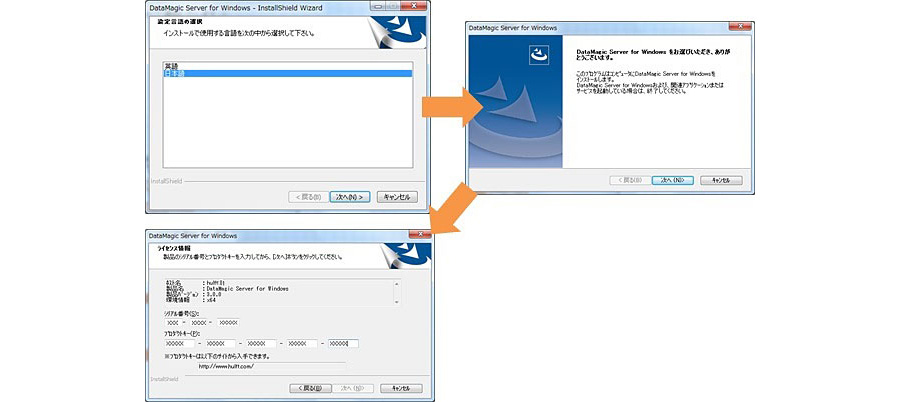
- Starting the setup program and setting the language
Run Setup.exe in the downloaded module.
Select your language and click the [Next] button. - When the setup program instructions are displayed, click the Next button.
- Enter the serial number and product key
Enter your serial number and product key.
(*For the evaluation version, the serial number and product key will be sent to you by email.)
Step 2 - Determine the installation directory
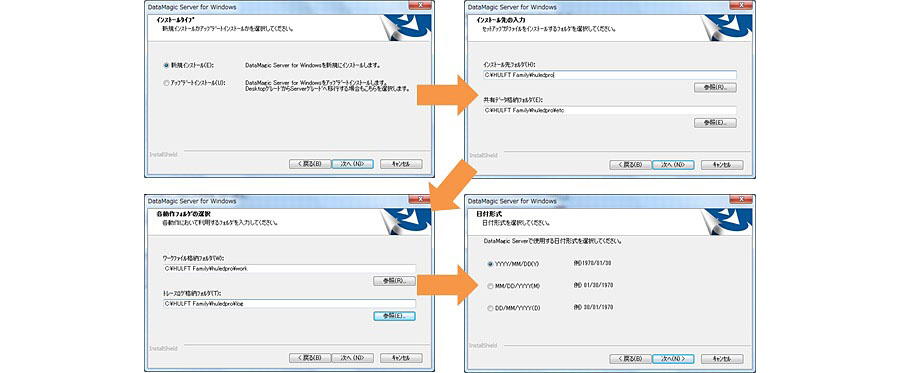
If the serial number and product key were entered correctly, DataMagic Installation Type selection screen will appear.
- Selecting Installation Type
If you are installing DataMagic for the first time, select "New installation" and click the "Next" button. - Setting the installation folder
If you want to change the installation folder or the HULEDPROPATH folder, click the [Browse] button and change the folder. After deciding on the folder, click the [Next] button. - Setting each operation folder input screen
Set the folder to be used for each operation. If you want to change the work file storage folder and trace log storage folder, click the [Browse] button and change the folder. After deciding on the folder, click the [Next] button. - Setting the date format
Set the date format to be used in DataMagic. After deciding on the date format, click the [Next] button.
Step 3 - Set the service name and administrator information
After setting the installation directory and date format, you can continue by setting the service.
- Launching DataMagic Manager
From the Start menu, click All Programs, then click HULFT Family, DataMagic Manager Ver.3, and then DataMagic Manager. - Service Information
Enter an arbitrary service name. Enter up to 30 characters, including alphanumeric characters and spaces. (The default DataMagic.) After entering the name, click the [Next] button. - Registered name setting
Set the registration name that will be displayed in the Start menu and "Change or Remove Programs." (*Default value: DataMagic for Windows Ver.2) After entering the name, click the [Next] button. - Verifying the installation
After checking the installation details, click the [Next] button to start the installation process.
Step 4 - Run the installation
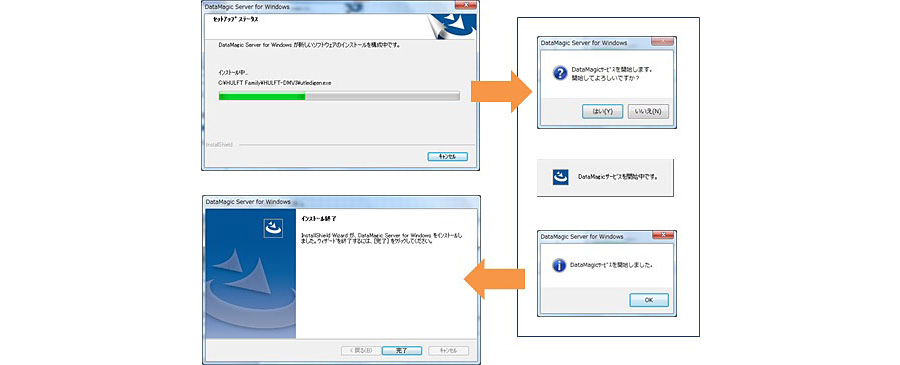
After confirming the installation contents, the installation process will begin. When the installation is completed successfully, the installation completion screen will be displayed. Click the [Finish] button to exit the setup program.
After the setup program is complete, you will be asked to confirm whether you want to start the service. If you are using DataMagic, follow the instructions on the screen to start the service. This completes all the steps.
lastly
Using DataMagic, you can easily create processes such as code conversion between different types of machines, data cleansing, and utilizing data stored in a database using a GUI.
Please download DataMagic trial version and take advantage of future technical columns.
- The trial version is free to use for 60 days.
- After you sign up for the trial version, you will receive 90 days of free technical support.