
Level up procedures
Customers who have a contract for the "Technical Support Service" can use the level upgrade.
For customers who have purchased paid technical support services, no special procedures are required to upgrade products other than HULFT 10 and DataSpider5.
Log in to my HULFT and download the latest version.
This page provides information on how to upgrade your HULFT 10 and DataSpider5 products.
Application procedure flow
Customer STEP 1: Check the contract status of the license you wish to upgrade
Check the contract status using the serial number of the license you wish to upgrade.
- To upgrade your level, you must sign a contract for the "Technical Support Service."
If you have not yet signed up for the Technical Support Service, please contact your sales partner.
»How to check the serial number
»Technical support service agreement status
Customer STEP 2: Apply for level up
Please fill in the necessary information on the "Version Upgrade/Level Up/License Change Application Form" and submit it to your sales partner.
[Important] Please note that you cannot downgrade after completing the level up procedure.
»Download the version upgrade/level upgrade/license change application form here
- The "Version Upgrade/Level Upgrade/License Change Application Form" can also be downloaded from the "Product Download/Key Issue" screen for the license eligible for upgrade within my HULFT.
Saison Technology STEP 3: You will receive the following items from Saison Technology.
- ID notification email
Customer Step 4: Log in to "my HULFT" using the ID notification email you received.
Customer STEP 5: Check the "Serial No." of the applicable product on the "my HULFT" license management page, download the product, issue a key, and install the product.
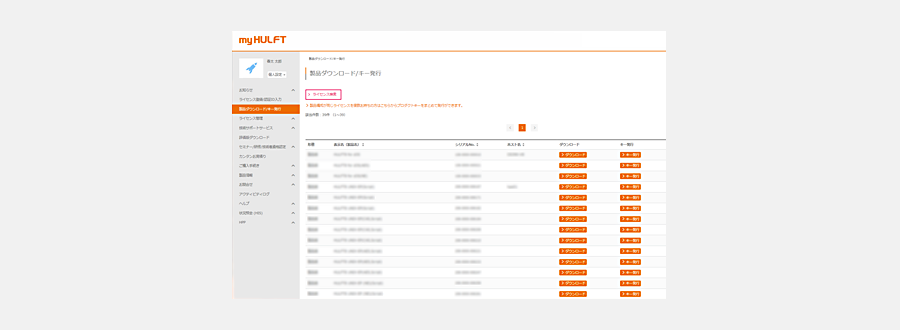
When installing the product, you will need the "Serial No." and "Key" listed on my HULFT.
From the "my HULFT" license management page, download the applicable product and then install the product.